Annotations
Draw, classify, and organise regions of interest on your image. Annotations work at full-image resolution, persist with your saved view, and survive reloads.
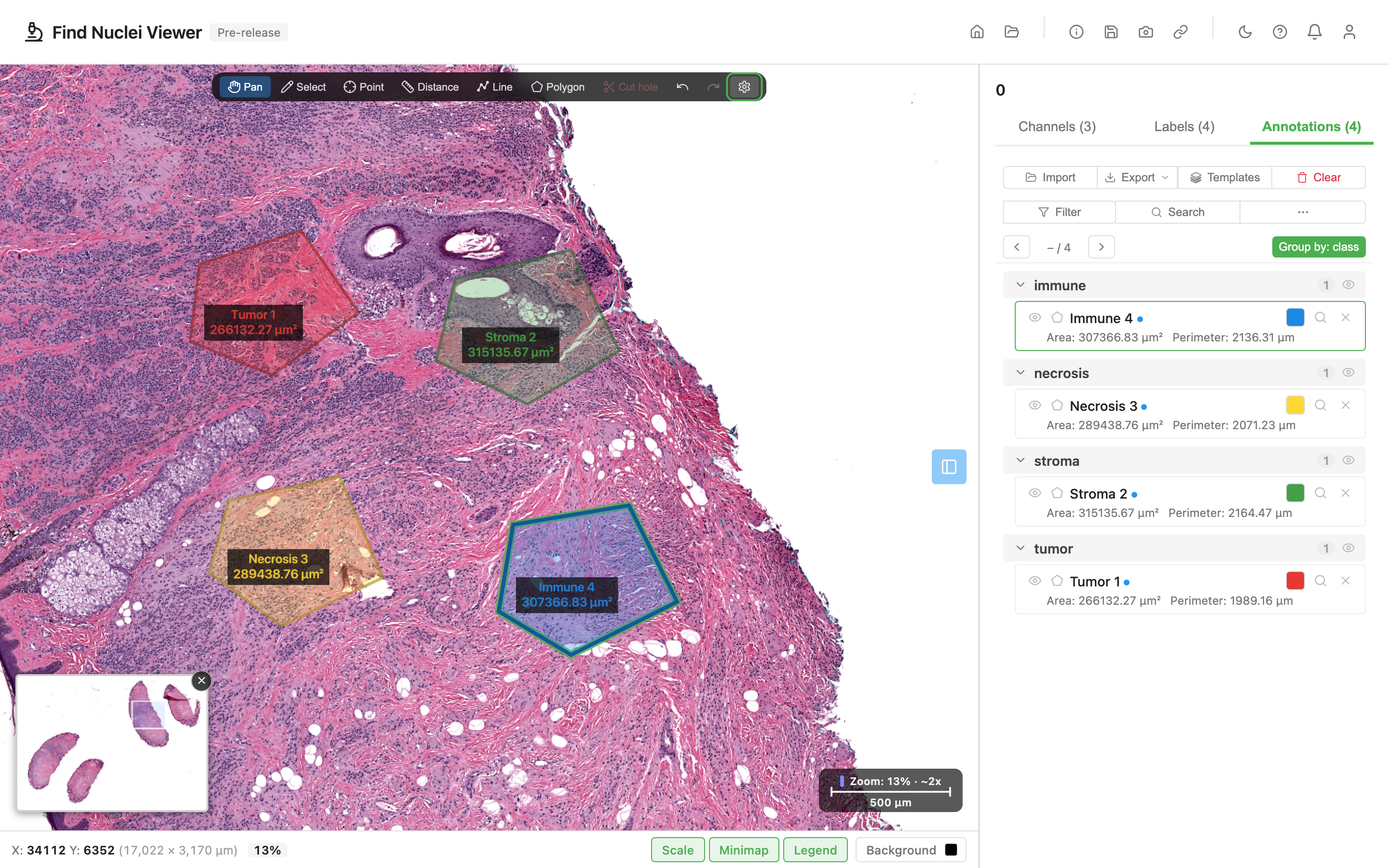
Drawing
Pick a tool from the toolbar above the image:
| Tool | Shortcut | Use for |
|---|---|---|
| Polygon | P | Closed regions: tumour, stroma, necrosis |
| Line | L | Open paths, trajectories |
| Distance | D | Measurements between two points |
| Point | B | Single-coordinate markers |
| Cut hole | K | Subtract a region from an existing polygon |
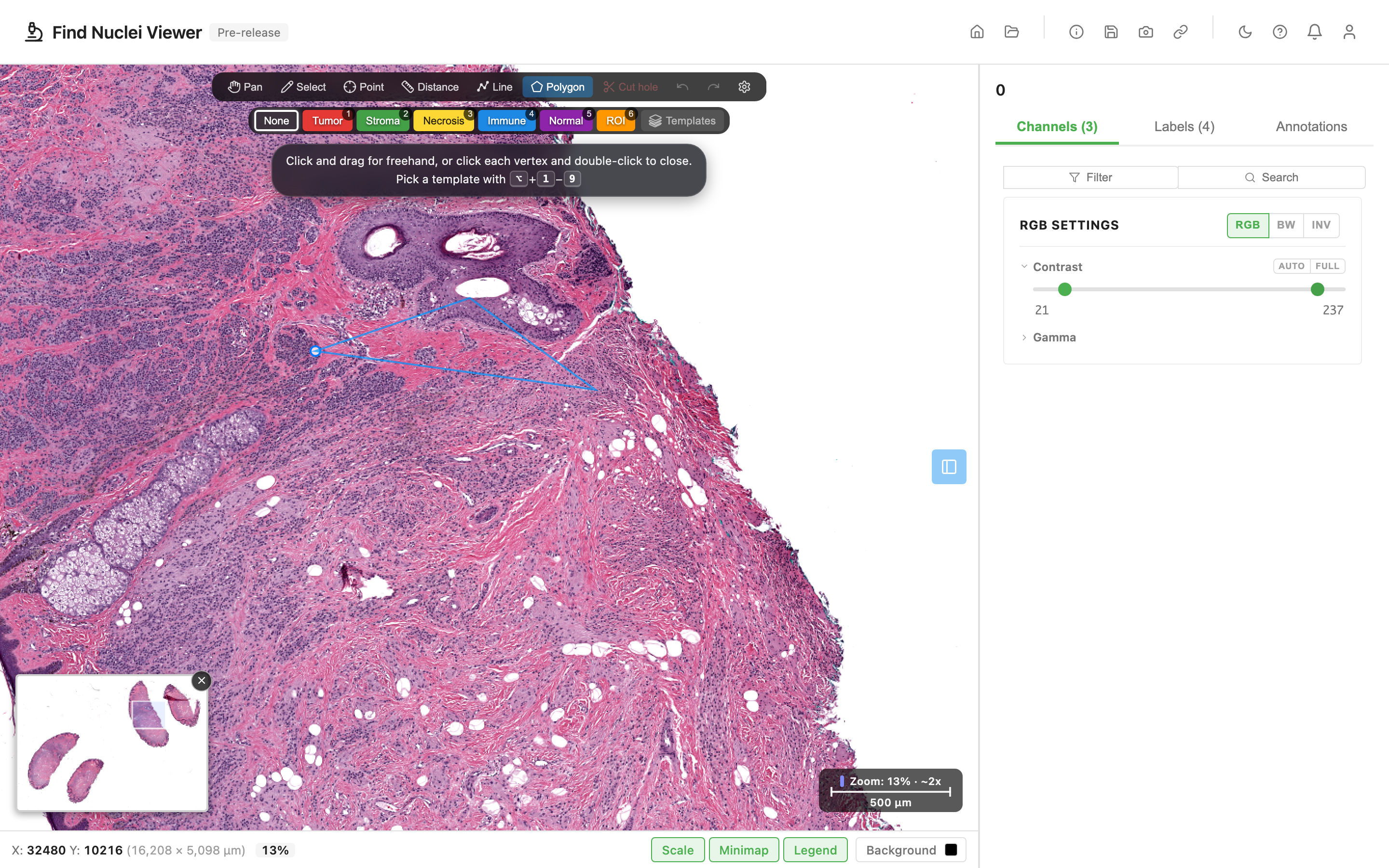
Polygon: two ways to draw
- Click-to-place: click each vertex, double-click to close. Best for precise outlines with a few vertices.
- Freehand: press and drag. The path is simplified on release (Douglas-Peucker) so a scribble becomes a clean polygon. Best for organic shapes.
Cut hole
Select a polygon first, then activate Cut hole. Any closed shape you draw inside is subtracted. Good for excluding a lumen from a tissue region, or excluding necrosis from tumour.
Selecting
The Select tool (V) is the pointer you edit with.
Single select
- Click a shape on canvas, or click a row in the annotation list.
- The detail panel expands below the selected row (Notes, Key-values, Template).
- Canvas: vertex handles appear at every corner; drag them to reshape.
Multi-select: list
- Cmd/Ctrl + click a row: toggle it into the selection.
- Shift + click a row: range-select from the current anchor to the new row, across groups in display order.
- Click empty space in the annotation panel (or press
Esc): clear the whole selection.
Multi-select: canvas lasso
Switch to the Select tool. Anywhere the cursor lands on empty canvas or on a non-selected annotation, press and drag to draw a freehand lasso. On release, every annotation that sits fully inside the lasso joins the selection.
| Modifier | Effect |
|---|---|
| (none) | Replace selection |
| Shift + drag | Add lassoed shapes to the existing selection |
| Alt + drag | Remove lassoed shapes from the selection |
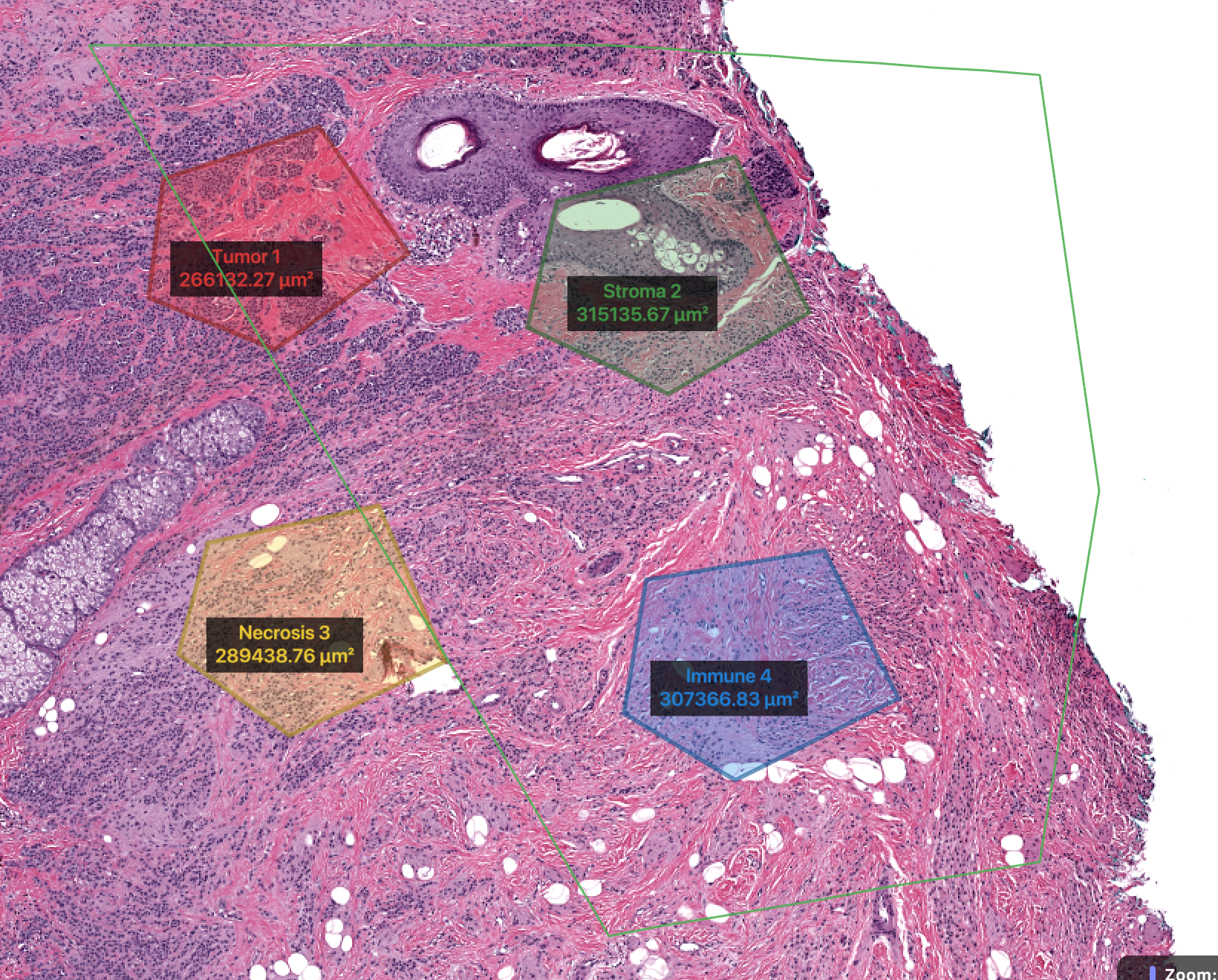
"Fully inside" means every vertex of the annotation is inside your loop. Shapes that clip the edge are excluded. If you lasso inside a large region (e.g. a tissue outline), that big region is not selected. It's not fully enclosed by your smaller loop.
Visual feedback
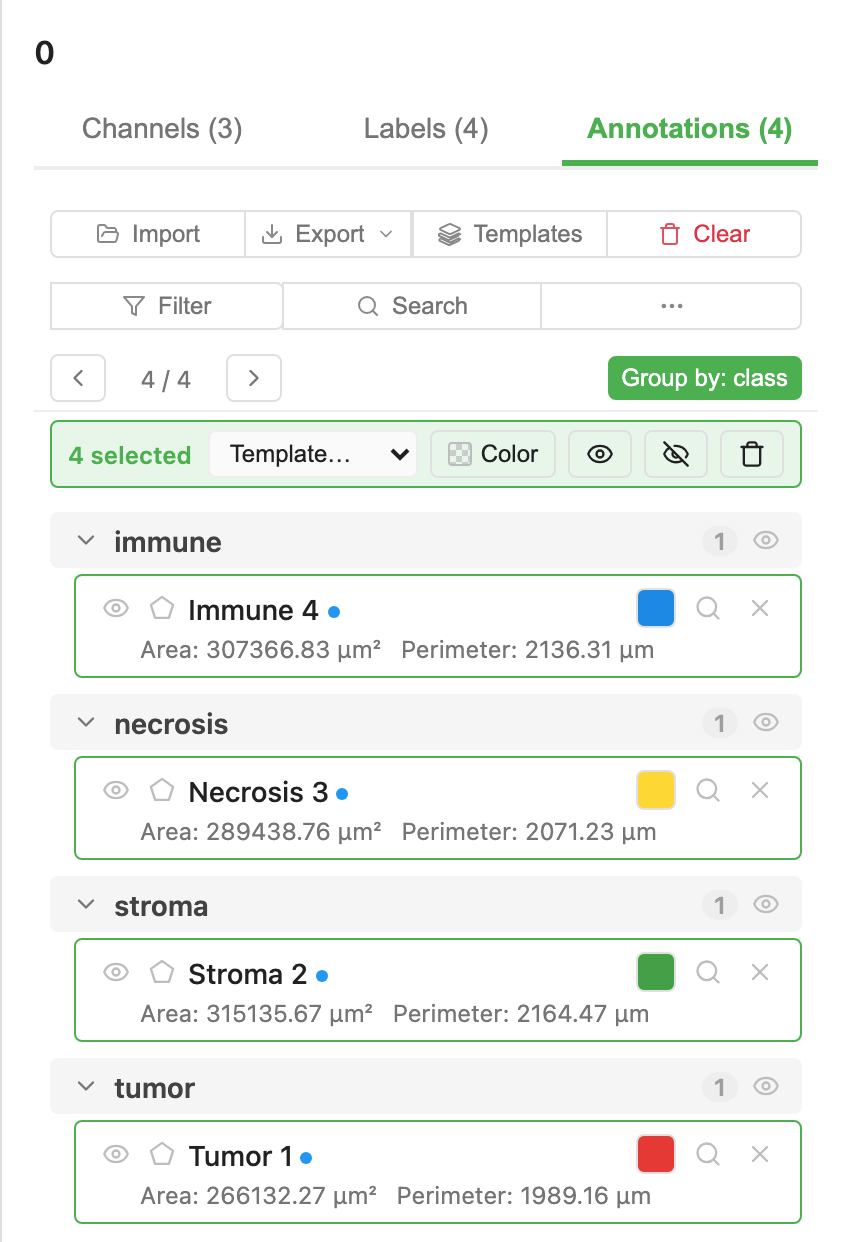
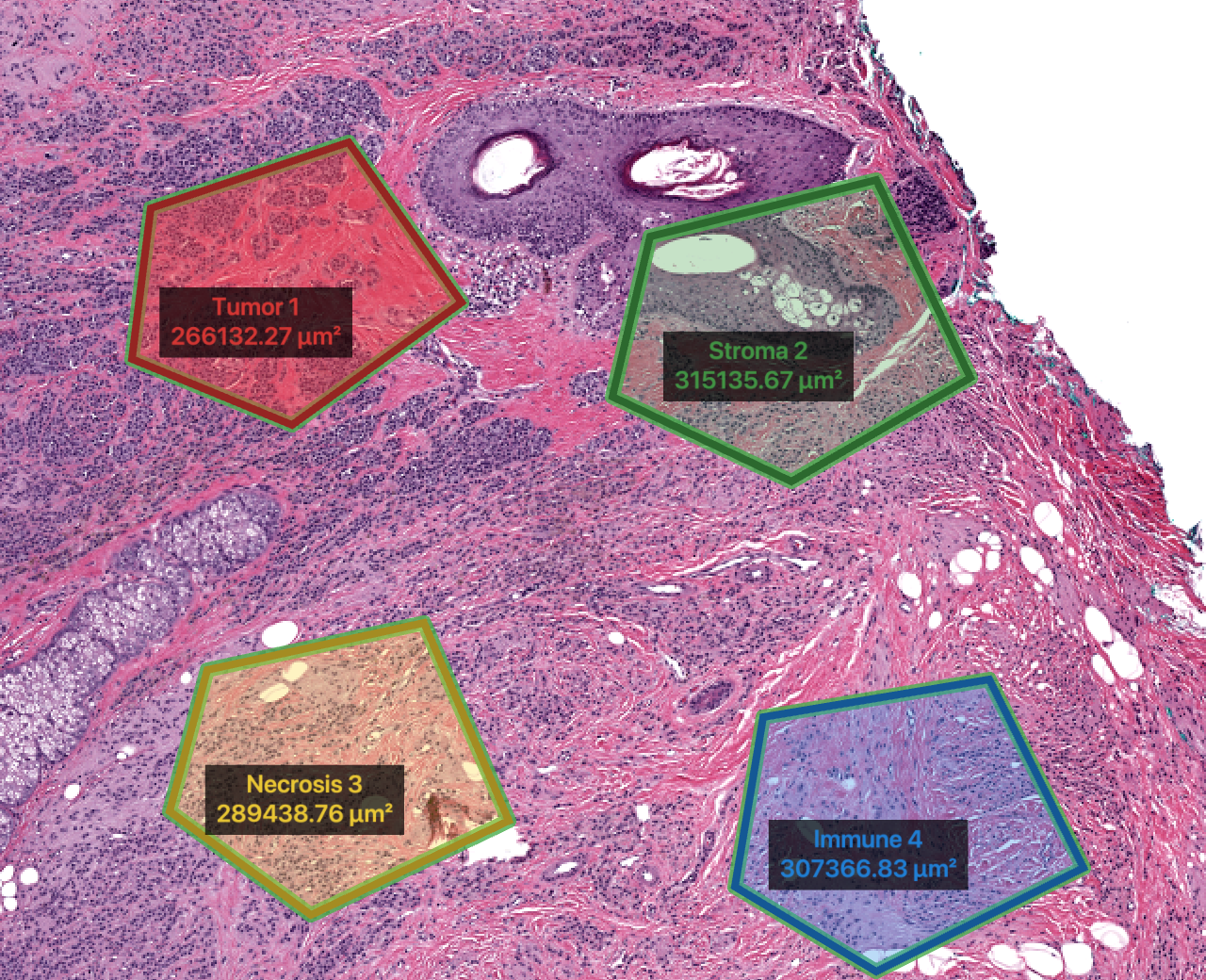
- Selected: a green halo around the shape on canvas, and a green left border on the list row.
- Active: the one annotation whose detail panel is open. In single-select it's the same shape; in multi-select it's the last one you clicked. Vertex handles appear only on the active annotation in single-select; multi-select hides handles so every selected shape reads as equal.
Bulk actions
When 2+ annotations are selected, a bulk action bar appears at the top of the list:

| Control | What it does |
|---|---|
| Template dropdown | Apply a template to every selected annotation (color + class + label substitution) |
| Color | Pick a color for every selected annotation at once |
 / /  | Show / hide every selected annotation |
 | Delete every selected annotation (with confirmation) |
All bulk operations are batched. One Cmd+Z reverts the whole action, not each annotation individually.
Group translate
Drag the body of any selected annotation and the whole group moves together. Arrow keys work the same way: ←→↑↓ nudges every selected shape by 1 pixel, Shift + arrow by 10 pixels.
Keyboard
| Key | With selection |
|---|---|
Esc | Clear selection |
Delete / Backspace | Delete (with confirmation if 2+ selected) |
| Arrow keys | Nudge group by 1 px |
Shift + arrow | Nudge group by 10 px |
Templates
Templates bundle a color, class, and other metadata into a single click. When you apply a template, the annotation gets the template's color and its class key-value. If the label contains the previous template's name, the name is substituted in place (Tumor 1 → Stroma 1).
Picking a template while drawing
Open the Templates manager from the Annotations toolbar. While any drawing tool is active, an on-canvas chip row shows the available templates. Click one to set it as active. Every annotation you create next inherits that template.

Keyboard: Alt + 1 through Alt + 9 select templates by shortcut slot.
Changing a template after drawing
Click the annotation's color swatch. The popover opens with a Template dropdown at the top:
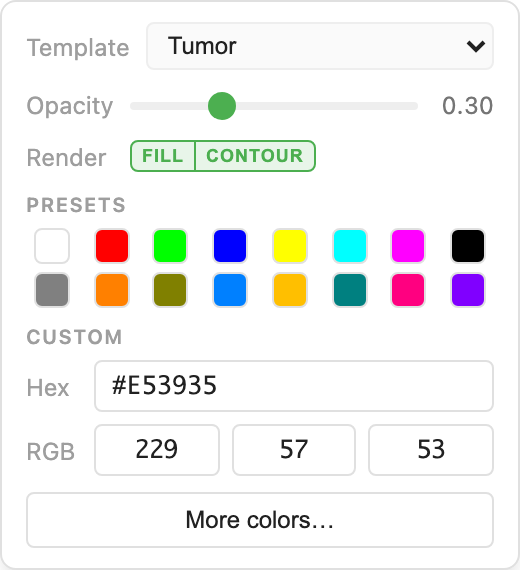
Pick a different template and the annotation's color, class, and label update together. The list re-orders into the new class group and the canvas smoothly zooms so you don't lose track.
Bulk template assignment
Select several annotations (list or lasso), then pick a template from the bulk action bar's Template dropdown. Every selected annotation is reclassified in one undoable step.
Grouping & sorting
The annotation list groups by class by default. Click Group By on the toolbar to group by any other key-value field, or to disable grouping.
Within each group, annotations sort by their label using natural numeric comparison, so Tumor 1, Tumor 2, …, Tumor 10 reads in numeric order (not lexicographic Tumor 1, Tumor 10, Tumor 2).
Previous/Next navigation walks the same sorted order the list displays, so pressing Next moves you through the list the way you'd expect.
Global display controls
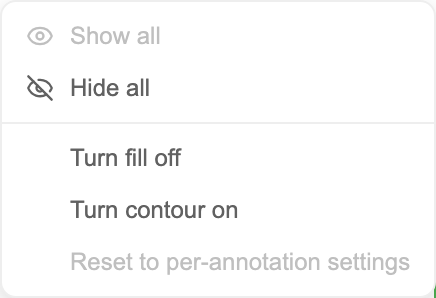
The toolbar's  kebab menu holds global bulk actions that apply to every annotation (not just the selected ones):
- Show all / Hide all: toggle visibility for the whole list.
- Turn fill on / off: apply to every polygon.
- Turn contour on / off: apply to every polygon.
Colors
Two ways to set a color:
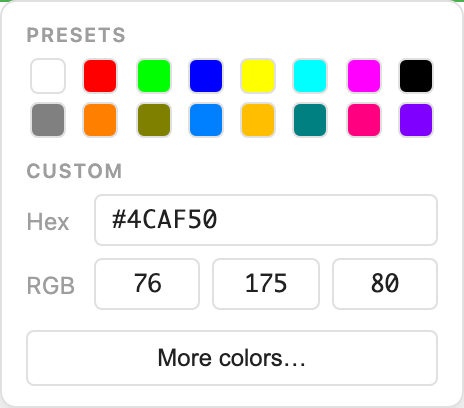
- Picker presets: open the swatch popover. The Presets grid shows 16 curated colors: RGB primaries on top, muted / perceptually-nicer variants on the bottom row. One click applies.
- Custom: type a hex value (
#FF00AA) or drive the three RGB number inputs directly. Synced bidirectionally. The "More colors…" button opens the OS-native picker for free-form choice or eyedropper (Chrome / Edge).
Channels use a fluorescence-specific palette (DAPI blue, GFP green, Cy5 red, etc.); labels and annotations share a general palette. Picking "Green" for an annotation gets the same hex as "GFP" on a channel, so a color swap affects both the display and any reference you've built on top.
Details: Notes, Tags, Key-values
With one annotation active, the detail panel below the row exposes:
- Notes: free-form text.
- Key-values: structured metadata rows.
classis reserved for templates; other keys are yours to invent (grade,reviewer,date-checked, etc.).
Notes and key-values survive reloads (saved to IndexedDB) and round-trip through GeoJSON export / import.
Import and export
- Import GeoJSON: bring in annotations drawn elsewhere.
- Export GeoJSON: the same format that QGIS, QuPath, napari, and Fiji understand.
- Export CSV: one row per annotation with label, class, measurements, centroid.
Keyboard shortcut summary
| Key | Action |
|---|---|
V | Select tool |
P / L / D / B / K | Polygon / Line / Distance / Point / Cut-hole |
Esc | Cancel current draw OR clear selection |
Space (hold) | Temporary Pan (while drawing) |
Cmd/Ctrl + Z / Shift | Undo / Redo |
Cmd/Ctrl + C / V | Copy / Paste annotation |
Delete / Backspace | Delete selected (with confirm if 2+) |
| Arrow keys | Nudge selected by 1 px |
Shift + arrow | Nudge selected by 10 px |
Alt + 1…9 | Select template slot |
Image credits
The screenshots on this page use a public whole-slide H&E section. See Sample Data and Credits.
Related guides
- Sharing Views: annotations are saved in the URL state and restored on reload
- HCS Plates: annotations work per-field in plate layouts
- Analytics & Phenotyping: color segmentation labels by per-object measurements