Installing and working offline
The viewer runs from a web page, but it does not need to stay in a browser tab and it does not need a network connection to start.
Installing
Open the viewer in Chrome or Edge and click the install icon in the address bar.
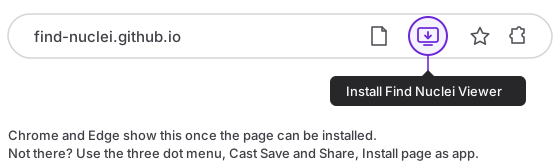
There is no install button inside the viewer itself, and that is deliberate. The browser already offers one, and a second button would only compete with it.
You get the viewer in its own window, with an icon in the Dock on macOS or the Start menu on Windows. It is the same viewer and the same data. Your projects, recent images, annotations and folder permissions carry over, because the installed app and the browser tab share the same storage.
Firefox and Safari do not offer this. Safari can add the page to the Dock, but it cannot open dataset folders, so a Safari copy reads remote URLs and datasets zipped into a single file. See Local Files.
Opening files from your desktop
Installing also registers .ozx, the single-file form of an OME-Zarr dataset. Double-click one in Finder or Explorer and it opens in the viewer, with no browser window to find first.
If the viewer is already open, the file goes to that window and asks before it replaces whatever you were looking at.
Only .ozx is registered, never .zip. Claiming every archive on your machine would be presumptuous, and most zips you double-click are not datasets.
This is a Chrome and Edge feature and it arrives with the install, so a viewer you installed earlier picks it up whenever the browser next refreshes the app's manifest rather than immediately. See A Dataset in a Single File for how to make one.
Working with no network
Once you have opened the viewer with a connection at least once, it keeps working without one. Launch it on a plane, open a folder from your disk, and it behaves normally.
What keeps working:
- The application itself, launched cold with no connection.
- Any image on your own disk. Pixels come from your filesystem, so no network is involved once you have granted access to the folder.
- Your projects, recent images, annotations, templates, analytics setups and viewer preferences.
What does not:
- Images at a URL. A remote dataset needs the network, including one you viewed five minutes earlier. Image data is deliberately never cached: it is often confidential, and writing it to disk on whatever machine you happen to be using would work against the point of a viewer that keeps your data local.
- This documentation, and the example gallery, which is a list of remote datasets.
So the short version is that the viewer works offline, with your own files. It does not make your remote images available offline.
Updates
When a new version is published you get a small notice offering to reload. It waits for you rather than swapping mid session, so you will not lose an annotation you were in the middle of drawing. Choosing "Later" keeps you on the version you have until you reload.
A note on browser storage
Your library lives in browser storage, which browsers are allowed to clear when a device runs low on space. The viewer asks for its storage to be treated as persistent, but browsers do not always agree, and installing does not guarantee it either.
In practice this is rare. It is worth knowing because it is the one way a project list can disappear, and because it is a good reason to keep your actual image data on disk rather than treating the viewer's library as the only record of it. Annotations can be exported as CSV or GeoJSON at any time.