Embedding in Publications
Embed an interactive OME-ZARR viewer in any web page with two lines of HTML. Designed for journals, data portals, and institutional repositories.
Two Lines of HTML to View Microscopy Data on Any Web Page explains the gap this fills. Browser-based OME-ZARR viewing is largely a solved problem, but every existing solution assumes the viewer is the page, which is no use when the page is your article.
From a View to an Embed
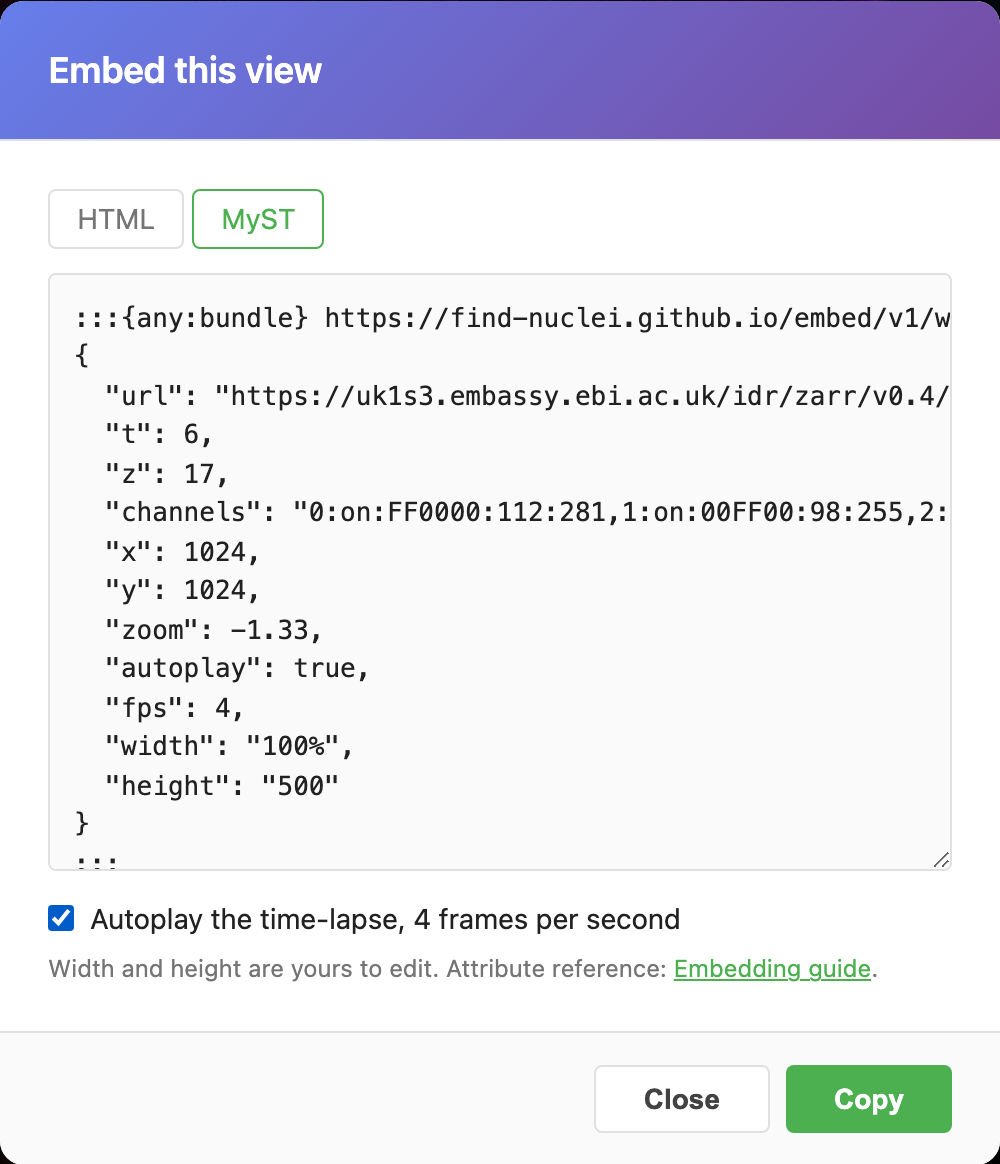
Set up the view in the viewer: position, zoom, channels, contrast, inversion, the frame you want. Then press Embed in the toolbar, the angle-brackets button next to Link.

The dialog shows the same view as an HTML element and as a MyST directive, ready to copy. For a time-lapse it offers an autoplay checkbox. Width and height are yours to edit afterwards.
Quick Start
Add the script once in your page <head>, then place the viewer element anywhere in your content:
<!-- Load once in <head> -->
<script src="https://find-nuclei.github.io/embed/v1/viewer.js"></script>

<!-- Place anywhere in your article -->
<find-nuclei-viewer
  url="https://uk1s3.embassy.ebi.ac.uk/idr/zarr/v0.4/idr0062A/6001240.zarr"
  labels="on"
  width="100%"
  height="500"
></find-nuclei-viewer>
Try it. This is a live viewer:
Pan, zoom, toggle channels, adjust intensity. All interactive. That's it. No build step, no npm, no framework required.
Attribute Reference
| Attribute | Required | Default | Description |
|---|---|---|---|
url | Yes | none | ZARR store URL (HTTP or S3) |
id | No | none | A name for the figure, such as fig-2-nuclei. Reported in every reader interaction event. |
z | No | 0 | Initial Z-slice index |
t | No | 0 | Initial timepoint index |
channels | No | auto | Channel config (see below) |
x | No | center | Initial X position (pixels) |
y | No | center | Initial Y position (pixels) |
zoom | No | fit | Initial zoom level (0 = 1:1, negative = zoomed out) |
width | No | 100% | CSS width |
height | No | auto (16:9) | CSS height |
labels | No | off | "on" to enable all label overlays, or a label name |
image | No | "0" | Image/series index for multi-image ZARR stores |
background | No | black | Canvas background color (black, white, or any CSS color) |
controls | No | minimal | "minimal", "full", or "none" |
token | No | none | Bearer token for authenticated sources |
theme | No | dark | "dark" or "light" |
grayscale | No | off | Render every channel in grey. The viewer's BW toggle. Presence alone means on. |
invert | No | off | Invert the composite. The viewer's INV toggle. Pair with background="white". |
autoplay | No | off | Start time-lapse playback once the image has loaded. Presence alone means on. |
fps | No | 4 | Playback frame rate asked for, 1 to 30. See Time-lapse Figures for what to expect. |
Channel Configuration
The channels attribute uses a compact string format:
index:on/off:hexcolor:min:maxMultiple channels are comma-separated:
<find-nuclei-viewer
  url="https://uk1s3.embassy.ebi.ac.uk/idr/zarr/v0.4/idr0079A/idr0079_images.zarr"
  channels="0:on:00FF00:8:90,1:on:FF0000:7:80"
></find-nuclei-viewer>
Live: green (lynEGFP) and red (NLStdTomato) channels with custom intensity ranges:
If omitted, channels are auto-detected from the OME-ZARR metadata.
Setting the Initial View
Use x, y, and zoom to point the reader at a specific region of interest:
<find-nuclei-viewer
  url="https://uk1s3.embassy.ebi.ac.uk/idr/zarr/v0.4/idr0079A/idr0079_images.zarr"
  x="500" y="350" zoom="-0.5"
  labels="on"
  width="100%"
  height="350"
></find-nuclei-viewer>
Live: zoomed into the center of the zebrafish embryo with labels enabled:
Finding coordinates
Open the image in the viewer, navigate to the region you want, then check the URL. It contains zm (zoom) and xy (center) parameters you can copy.
Showing Segmentation Labels
If the ZARR dataset contains label images (segmentation masks), enable them with labels="on". Each segmented object gets a unique color. The controls panel includes a label toggle and opacity slider.
<find-nuclei-viewer
  url="https://uk1s3.embassy.ebi.ac.uk/idr/zarr/v0.4/idr0062A/6001240.zarr"
  labels="on"
></find-nuclei-viewer>
See the first example at the top of this page for a live demo with labels.
RGB Images
For RGB brightfield images, set a white background:
<find-nuclei-viewer
  url="https://uk1s3.embassy.ebi.ac.uk/idr/zarr/v0.4/idr0073A/9798462.zarr"
  background="white"
  width="100%"
  height="350"
></find-nuclei-viewer>
Live: RGB zebrafish brain section with white background and unified brightness slider:
The viewer auto-detects RGB data and shows a unified brightness slider instead of per-channel controls.
Multi-Image Stores
A store written by bioformats2raw can hold several images, one per series. The image attribute picks the one to show; the value is the series path, usually "0", "1" and so on. Leave it out to show the first.
<find-nuclei-viewer
  url="https://uk1s3.embassy.ebi.ac.uk/idr/zarr/v0.4/idr0079A/idr0079_images.zarr"
  image="1"
  width="100%"
  height="400"
></find-nuclei-viewer>
The embed loads only the series it shows. An image value the store does not have falls back to the first series rather than failing.
Grayscale and Inverted Views
The viewer has BW and INV toggles. The embed exposes them as attributes, so a view you set up with the share link can be reproduced in an article. Inverted single-channel on white reads like a printed figure:
<find-nuclei-viewer
  url="https://nyu1.osn.mghpcc.org/barkley-replication/nuclei_mosaic.zarr"
  channels="0:on:FFFFFF:0:240"
  invert background="white"
  width="100%"
  height="400"
></find-nuclei-viewer>
Both attributes are boolean: present means on, and "off" or "false" means off.
MyST, Curvenote and Shadow DOM
MyST sites, including journals on Curvenote such as Elemental Microscopy, render widgets inside a shadow root. The element mounts there directly, but a page-level <script> tag is not available in a MyST article, so use the widget module through the any:bundle directive. Every JSON key becomes an attribute of the viewer:
:::{any:bundle} https://find-nuclei.github.io/embed/v1/widget.mjs
{
  "url": "https://your-bucket/image.zarr",
  "channels": "0:on:FFFFFF:0:240",
  "x": 2115, "y": 1688, "zoom": -1.9,
  "height": "500"
}
:::
The module loads the same /embed/v1/viewer.js release as the script tag and follows the anywidget contract, so it also works as a Jupyter widget bundle. If your platform allows neither scripts nor widgets, MyST's iframe directive pointing at a page that hosts the viewer is the fallback. A live comparison of the three routes: MyST and Shadow DOM.
Time-lapse Figures
In the viewer, a time-lapse gets a Play button under the time slider, and Space toggles it. Drag the slider to stop. While it loads, the line next to the button says when it starts ("Loading, starts in about 6 s"); while it sharpens, "Sharpening 12 of 30".
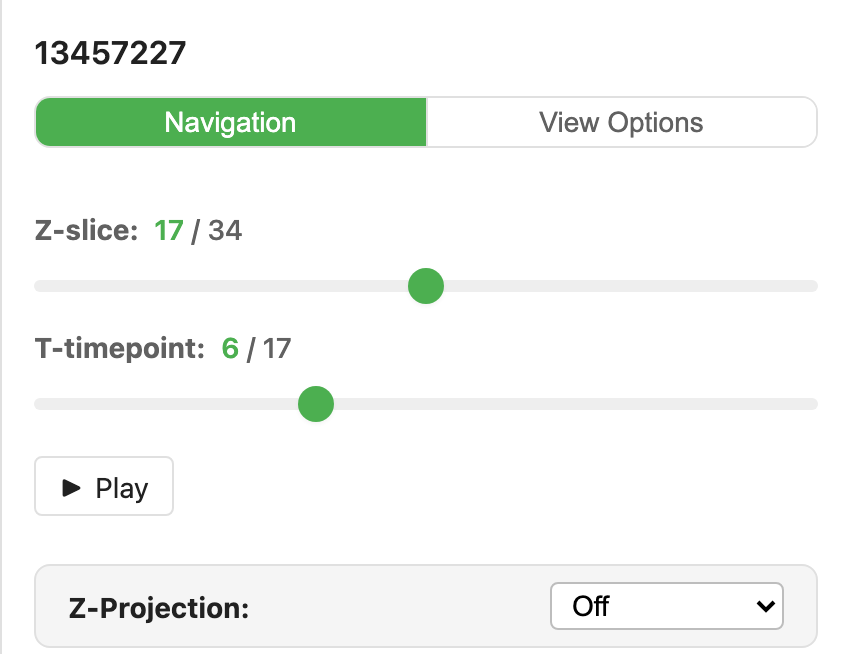
An image with a time axis gets a play button in the bottom bar. Add autoplay and the figure moves as soon as it is on screen, like an animated GIF, and pauses while scrolled out of view. Each frame is shown complete, so on a slow link the tempo drops rather than the frame tearing. fps sets the rate.
Before it plays, the figure loads enough of the loop to play without stopping. The bar says when it starts: "Loading, starts in about 6 s". On a small embed it shows "12/30", the frames in of the frames it waits for, or "Starts in 6 s" for a long series. It picks the finest detail it can play without stopping and starts within about 10 seconds. On a fast connection that is full detail, in under a second. On a slow one it starts with less detail and sharpens in the background, with "Sharpening 12 of 30" on the bar. On a very slow one it waits for the whole loop at the least detail, past 10 seconds if it must (up to about 30 seconds of loading), and then plays every loop at the rate you asked for. With autoplay the figure starts once it is on screen.
A long series plays like a video, with a few seconds loaded ahead, and keeps its first frames in memory. When a series is too long to fit in memory, or would take more than about 30 seconds to load, and even the least detail cannot keep up, it plays at an even, slower tempo, and at the rate you asked for once the frames are in memory.
The opening view stays in memory while the figure is open. Zoom back out to it, or further, and playback goes on at once. Pan or zoom within what is loaded and it goes on too.
Zoom in and playback goes on at once, smoothly, from what is in memory, drawn larger. Once the view has been still for about a second and a half, it sharpens in the background, and the line says so: "Sharpening 12 of 30, about 20 s". It loads the finest detail that fits in memory in one go, and switches to it between two frames. If that would take longer than about 20 seconds, it first loads a level in between that comes in sooner, then the finest. So a zoom sharpens once or twice, never more. When full detail is too large for memory, it stops at the finest detail that fits, or plays full detail like a video if the connection keeps up.
Pan to a part never loaded and playback waits as at the start, with the same line and an estimate, then goes on by itself. Press Play to go on at once with what is loaded. Pause always shows full detail. While the figure waits more than half a second for a frame, the bar shows "Loading".
Later loops play from memory at the rate you ask for, up to 30 fps. Your graphics card and screen set the limit.
The loop is kept in memory, up to 512 MB for the page, or 1 GB on devices that report 8 GB or more. Several viewers on one page share that.
<find-nuclei-viewer
  url="https://nyu1.osn.mghpcc.org/barkley-replication/video.zarr"
  autoplay fps="4"
  width="100%"
  height="500"
></find-nuclei-viewer>
In a MyST article the same two keys go into the any:bundle JSON: "autoplay": true, "fps": 4. Readers start and stop it with the Play button under the time slider.
Multiple Viewers on One Page
You can embed multiple viewers on the same page. Each is independent. Viewers use lazy loading. They only fetch data when scrolled into the viewport.
Each viewer keeps its own image cache, so two figures from different stores always show their own pixels. To script one viewer among several, select its element and use its viewer property:
document.querySelector('#figure-2').viewer.setT(5);window.__fnViewer is a debugging shortcut. With one viewer on the page it is that viewer. With several, it is the most recently created one.
WebGL Context Limits
Browsers allow ~8–16 WebGL contexts per page. If you embed more than 8 viewers, some may fail to render. The lazy loading behavior (default) helps mitigate this.
Interactive Controls
The embedded viewer provides these interactive controls:
- Channel dots: Click to toggle channels on/off
- Channel name ▾: Click to open a color picker (12 scientific color presets)
- Intensity sliders: Dual-thumb range sliders per channel (min/max)
- Z-slider: Navigate through Z-slices (if multi-Z)
- T-slider: Navigate through timepoints (if time series)
- Labels toggle: Show/hide segmentation overlays with opacity control
- Fullscreen: Expand the viewer to fill the screen
- "Open in Find Nuclei Viewer": Link to the full app with the same view
On Phones and Small Screens
When the viewer is narrower than 480 pixels or lower than 320, and on phones and tablets, the channel panel stays hidden, so the image is never covered. Readers keep Play, the Z and T sliders, fullscreen and the link to the full viewer. Fullscreen brings the channel panel back. On a touch screen the bottom bar is always shown. The channels you set in the embed code show as you set them.
An embed with no height is 16:9, so its panel hides below 569 pixels wide, not 480.
JavaScript API
For programmatic control from your page:
const viewer = document.querySelector('find-nuclei-viewer');

// Navigate
viewer.viewer.setZ(10);
viewer.viewer.panTo(500, 300, true);
viewer.viewer.zoomTo(-1, true);

// Change channels
viewer.viewer.updateChannelSettings(0, 100, 3000, true, '00FF00');

// Listen to events
viewer.viewer.on('z:changed', (data) => {
  console.log('Z-slice:', data.z);
});
Reader Interactions
Each viewer tells your page what its reader does: where they look, which channels they switch, which frame they stop on, and how long the figure is on screen. It does this with one browser event. The viewer itself sends nothing anywhere; your page decides what to keep.
document.addEventListener('fn-viewer:interaction', (e) => {
  console.log(e.detail.action, e.detail.view);
  // or: yourTracker.send(e.detail);
});
Add the listener before the viewers load, near the top of the page. Events are not stored or replayed, so a listener added later hears only what happens from then on. To store them with your own analytics, see Reader Analytics.
The event also leaves a MyST widget's shadow root, so the same listener works in a Curvenote article.
Give each viewer an id that is unique on the page, and every event says which figure it came from: id="fig-2-nuclei" on the element, or "id": "fig-2-nuclei" in a MyST directive. Without one, id is null, and the url alone cannot tell two figures of the same dataset apart.
Every event carries the whole view at the moment of the action, so each one stands on its own:
| Field | Meaning |
|---|---|
action | What the reader did (see below) |
seq, time | Order on this viewer, and when it happened (milliseconds since 1970) |
id, url, image | Which viewer: its id, url and image attributes. id and image are null when not set. |
view.x, view.y, view.zoom | The view centre and zoom, in the units of the x, y and zoom attributes |
view.bounds | The area on screen, [x0, y0, x1, y1], in the units of x and y. Near an edge of the image it reaches past it. |
view.width, view.height | The viewer's size in pixels |
z, t | The z-slice and timepoint |
playing | Whether a time-lapse is playing |
channels | Each channel: index, active, color (hex without #, such as FF00FF), min, max |
Paste x, y and zoom from any event into an embed and it opens on the same centre and magnification. A viewer of the same size shows exactly what the reader saw.
action | When |
|---|---|
ready | When the image has loaded. This is the starting view. A new url loads a new image, sends ready again and starts seq from 0. |
pan, zoom | When the reader stops moving the image |
channel | When a channel is switched or its contrast set |
z, t | When the reader settles on a z-slice or timepoint. A playing time-lapse steps t on its own, so those frames are not reported; play and pause carry the t they happened at. Dragging the time slider of a playing figure pauses it first, so you get pause, then t. |
play, pause | When the reader starts or stops a time-lapse |
visible, hidden | When the viewer crosses half on screen, in either direction, or the tab is switched. The first one is always visible. |
Autoplay, and the pause while a figure is scrolled away, are the viewer's own doing, so they are not reported as play or pause. Changes your page makes after ready, through the attributes or the JavaScript API, are reported like the reader's; your page knows when it made them. Switching autoplay on or off from your page is not reported.
Time spent on a figure is the time from each visible to the next hidden. A viewer that is removed while on screen, for example when a reader follows a link inside a single-page site, ends without hidden, so close any open interval at your own page-leave event.
See it live: the reader interactions demo prints every event of three viewers as you use them.
Style Isolation
The embed's styles use their own fn-embed- class names, so they leave your page alone, and your page's classes leave the embed alone. The viewer adds its stylesheet once, to the page or to the shadow root it sits in, which is how it also works inside a MyST widget. A page rule broad enough to style every div or canvas can still reach it.
More Examples
- Publications: a mosaic of 1,061,277 nuclei and four IDR studies, each with its embed code.
- MyST and Shadow DOM: three ways into a Curvenote or MyST article.
- Reader interactions: three viewers and a live table of what their readers do.
CDN & Versioning
The embed script is served from:
https://find-nuclei.github.io/embed/v1/viewer.jsThe /v1/ path is versioned. Future breaking changes will use /v2/, so existing embeds continue to work.