Yokogawa CellVoyager plates
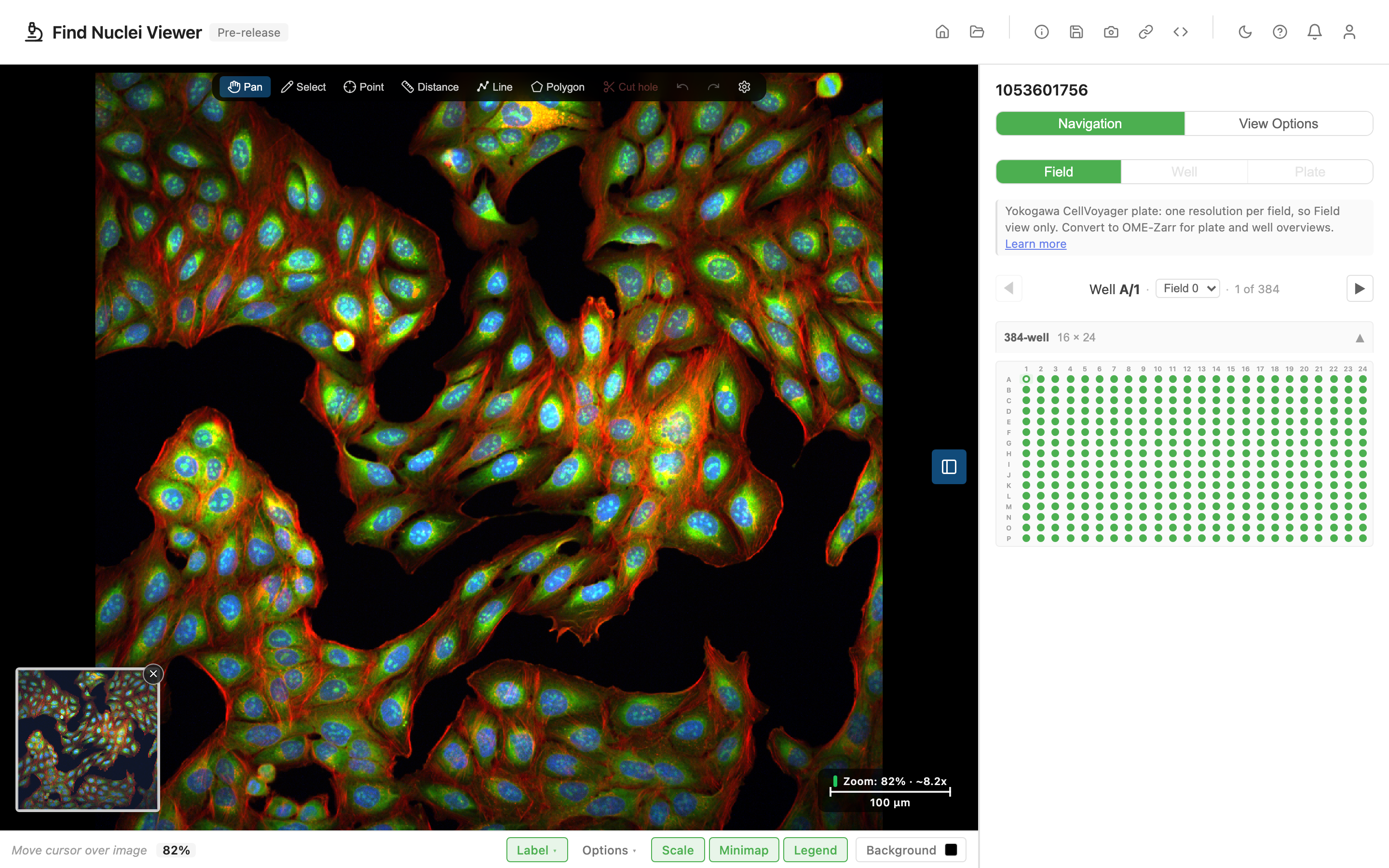
Find Nuclei Viewer opens plates from a Yokogawa CellVoyager CV8000 or CV7000, straight from the measurement folder. Nothing is converted and nothing is uploaded. More than 1,000 JUMP Cell Painting plates in the Cell Painting Gallery come from a CellVoyager CV8000 or CV7000 and open this way.
Plates from an Opera Phenix have their own guide: Opera Phenix Plates. Other formats the viewer opens are listed in Supported Formats.
What opens
A CellVoyager measurement folder holds three metadata files next to one TIFF per field, plane, timepoint and channel:
MeasurementDetail.mrf: the plate grid, the plate name and the image size.- the
.mesfile it names: the channels and their dyes, filters and light sources. MeasurementData.mlf: one record for every image.
The viewer reads these files and loads the TIFFs as you look at them. Plates from the CV8000 and the CV7000 both open.
The folder can sit at any web address that lets the browser read it, such as a public S3 bucket, or on your disk.
Opening a plate from the web
Open the Open dialog, choose From URL and paste one of these:
- the measurement folder, the one that holds
MeasurementDetail.mrf, - the address of
MeasurementDetail.mrf, - or the address of
MeasurementData.mlf.
An https:// address and an s3:// address both work. Here is JUMP plate 1053601756 from source_2, a CV8000 plate, in both forms:
https://cellpainting-gallery.s3.amazonaws.com/cpg0016-jump/source_2/images/20210607_Batch_2/images/1053601756/

s3://cellpainting-gallery/cpg0016-jump/source_2/images/20210607_Batch_2/images/1053601756/
The plate opens in field view on well A/1, its first well.
The viewer looks in the folder you give it, not in the folders below. Some plates sit one level down, inside a folder of the plate's name. Open that inner folder.
A bucket name with a dot in it works as s3:// in us-east-1. In any other region, paste its regional https address instead: https://s3.<region>.amazonaws.com/<bucket>/....
Opening a plate from disk
Open the Open dialog, go to Local Files and click Choose Data Folder. Pick the measurement folder, the one that holds MeasurementDetail.mrf. Nothing leaves your computer.
Folders open in Chrome and Edge, as for any dataset folder. Safari and Firefox cannot open folders. See Local Files for the details.
What to expect
The viewer reads the two small files first, a few kilobytes each. Then it reads the image list, MeasurementData.mlf. The plate opens as soon as the first well is in. The rest of the list, 6 to 10 MB, finishes in the background while you look around.
Until the list is done, the well picker shows every well of the plate grid. From the next open, it shows exactly the wells that were imaged.
Missing images
A field with no images never shows as black. The canvas says what happened instead:
- From the web: "Images for A/3, field 0 could not be loaded."
- From disk: "No images for A/3, field 0 in this folder."
Opened from disk, the viewer also checks which images the folder holds. That helps with a partial copy of a plate. A well listed in MeasurementData.mlf with no images in the folder is grey in the well picker, with the tooltip "No images in this folder". Its fields read "(no images)" in the field dropdown.
One missing channel is left out of that field. The other channels still show.
The second time, the plate opens faster. The viewer keeps what it learned in the browser's storage and skips reading the files again. Clear All Data on the start screen removes it.
Moving through the plate
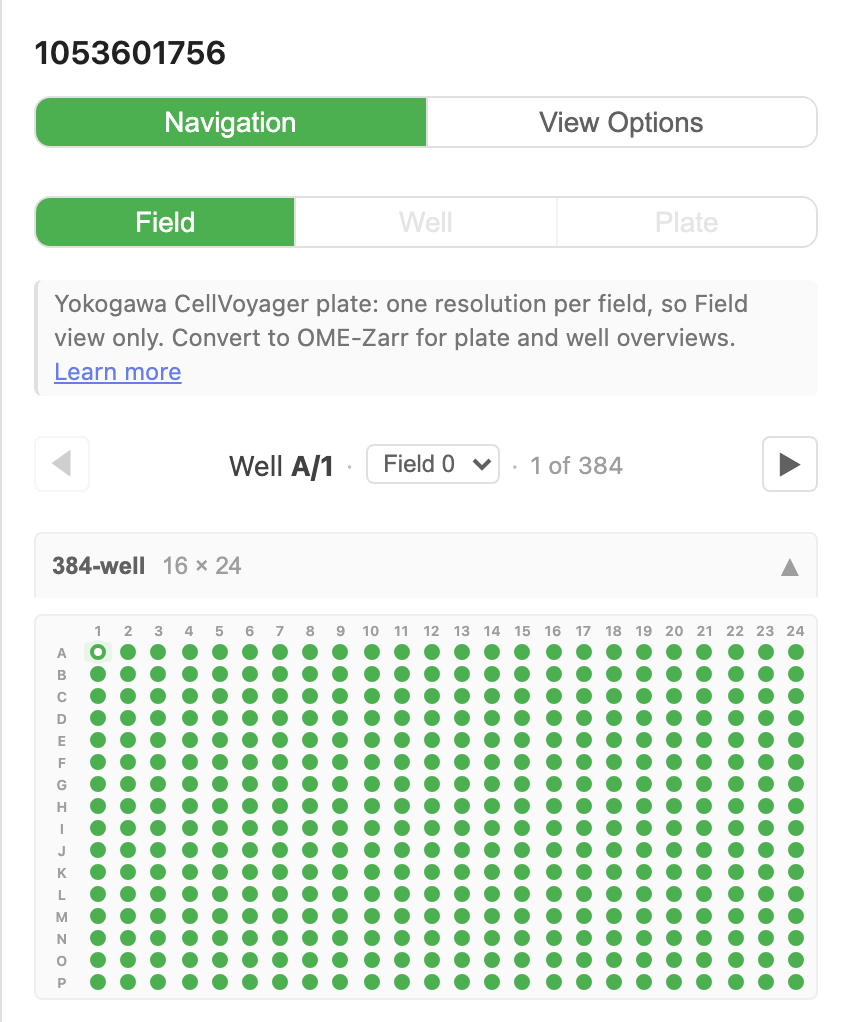
The panel is titled with the plate name, such as 1053601756. The well navigator steps through the wells, and the well picker below it jumps to any of them. The field dropdown moves between fields. The HCS Plates guide covers the navigator and picker.
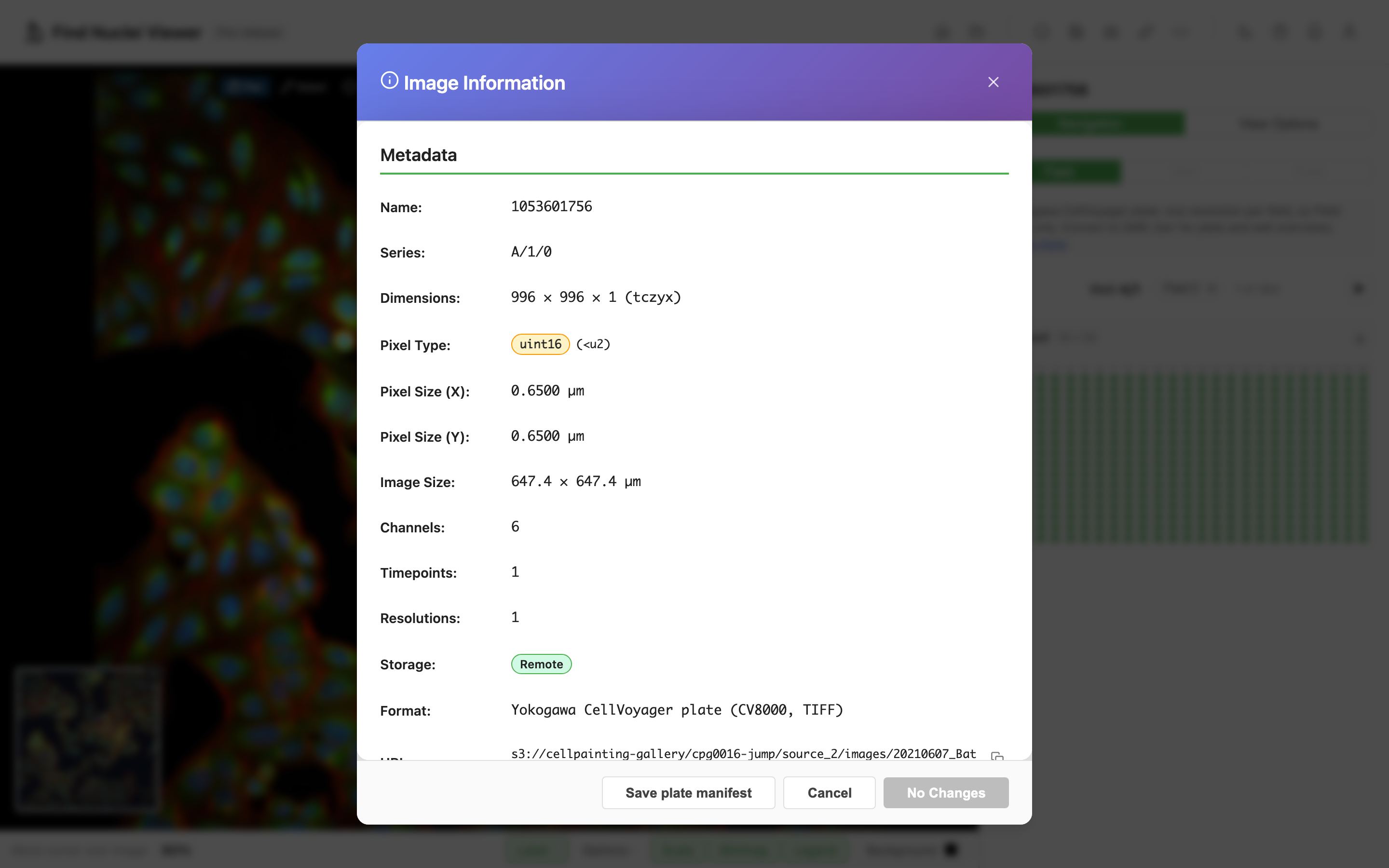
Info in the toolbar names the instrument, for example: "Yokogawa CellVoyager plate (CV8000, TIFF)."
What is shown
Field view only. Like an Opera Phenix plate, a CellVoyager plate stores each field at one resolution, with no pyramid. So Plate and Well view are off. The Opera Phenix guide explains why. Want plate and well views? Convert the plate to OME-Zarr.
Plane 1 for every channel. JUMP plates image fluorescence in one plane and brightfield in three. The viewer shows plane 1 of each channel, so every channel of a field shows together. Brightfield's other planes are not shown yet.
Field view works as for any image: zoom, pan, channels, contrast.
Channels and colours
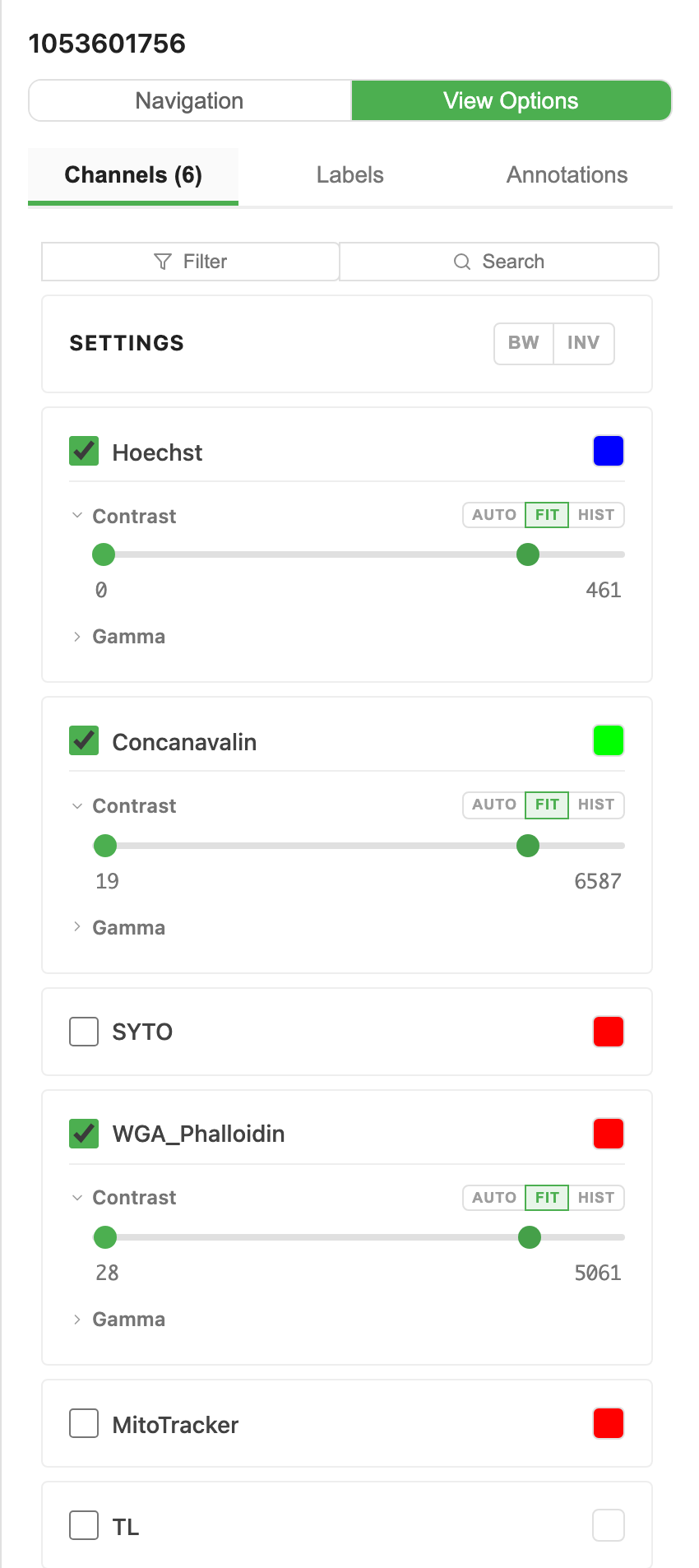
Channels take their names from the .mes file: Hoechst or MitoTracker on one JUMP plate, DNA or Mito on another. A channel with no name there is named by its filter and light source, such as "BP445/45 · 405nm". Each one is coloured by its emission wavelength. Brightfield channels are grey and start switched off, so the first view shows the fluorescence. Turn them on in the channel panel. The Channels guide covers the rest.
The plate manifest
Behind every CellVoyager plate the viewer builds a plate manifest, the same small JSON file it builds for an Opera Phenix plate. It names the plate, its wells, fields and channels, the image size and pixel size, and the file name of every image. To keep one, open Info and click Save plate manifest.
The format is published as a JSON Schema: https://find-nuclei.github.io/schemas/plate-manifest/v1.json.
Try one
The Example Gallery holds six CellVoyager plates from JUMP, under the Cell Painting Gallery source. Open one with a single click.
Does not open
- Folders without
MeasurementDetail.mrf. In JUMP, 10 source_2 plates and all of source_7 hold TIFFs only, with no metadata files. They do not open yet. - The Yokogawa CQ1. It writes a different set of files. Convert it to OME-Zarr first.
- Channels of different image sizes. The viewer shows the channels of a field together, so they must match. A plate that mixes sizes shows a message and does not open.
Limits
- Brightfield shows plane 1 only.
- No flat-field correction yet. Images show as recorded.
npm run build:plate-manifestbuilds manifests for Opera Phenix plates only. For a CellVoyager plate, save the manifest from the viewer.- The embedded viewer does not open these plates. Use the full viewer.