Philips TIFF Slides in the Browser
Open the TIFF slides your Philips scanner saves, as they are. Nothing to convert, nothing to upload. A large slide starts showing right away, because the viewer reads only the part you look at.
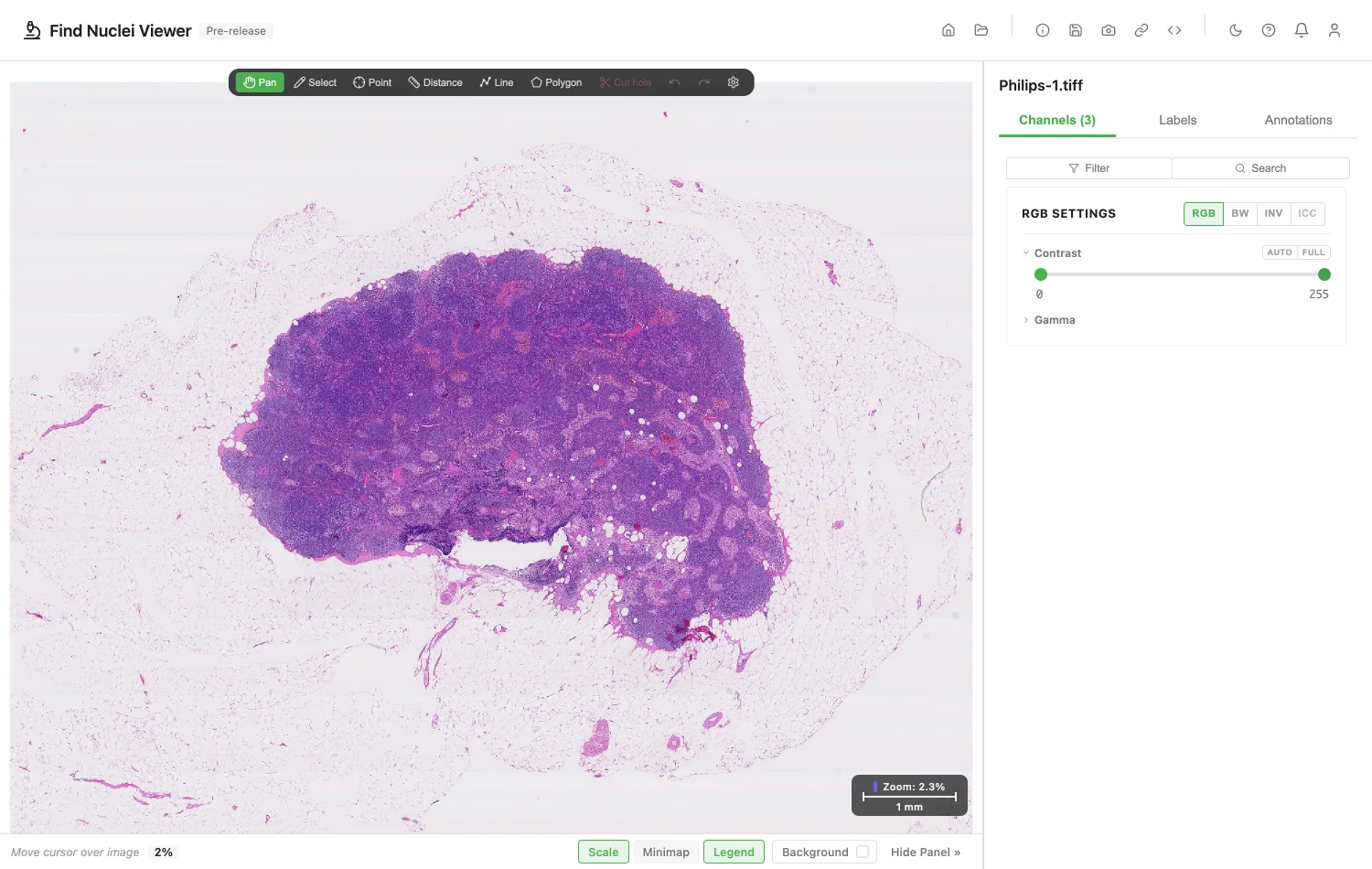
How It Opens
- One file on your disk, in any browser. Drop it on the viewer, or click Open Image and Choose File. See Local Files.
- A folder of slides, in Chrome and Edge. One slide opens, several show a list. See Local Files.
- An address:
https://,s3://orgs://. Paste it under Open Image. See Remote URLs. - Private data, with a private link or a token. See Private Images and Slides.
What You Will See
- The slide. Zoom from the whole slide down to single cells.
- Label and Macro. They appear under the slide's name. A label may show patient details. The viewer shows it and never saves or sends it.
- Empty areas. Areas the scanner skipped show as white.
- Colour profile. A slide that carries its scanner's colour profile is drawn with it. ICC in the RGB settings turns it off. See Channels.
- Pixel size and magnification. The pixel size comes from the slide, so measurements read in µm. Philips TIFF states no magnification. Enter it in Pixel Size and Magnification and the zoom bar shows it.
If a Slide Does Not Open
The viewer tells you why.
| What the file has | What the viewer says |
|---|---|
| Another compression | This Philips TIFF uses a compression the viewer cannot read yet. |
| Not 8-bit RGB | This Philips TIFF is not 8-bit RGB. The viewer cannot read it yet. |
| Another kind of TIFF | The viewer reads Philips slides among TIFF files. This one is another kind. |
| A damaged or incomplete file | This Philips TIFF looks damaged or incomplete. |
Some Philips files keep the label inside their metadata. Those labels are not shown yet.
Annotations
Import GeoJSON or OME-XML, and export both, from the Annotations panel. Send a link that opens the slide with its annotations. Exchanging Annotations shows how. To draw, measure and label shapes on the slide, see Annotations.
Public Slides to Try
OpenSlide shares test slides in its Philips TIFF folder. Download a slide, then drop it on the viewer. They are CC0.
For Your IT Team
To open a slide by address, the server must answer byte-range requests and allow them through CORS. For a bucket, allow GET and the Range header in its CORS rules. What the Server Needs has the details.
When a server cannot send parts of a file, the viewer says so. Download the slide and open it from your computer.
Addresses that start with s3:// and gs:// work too.
Image credits
The screenshot uses Philips-1.tiff from the OpenSlide test data, CC0. See Sample Data and Credits.
Privacy
The slide is read in your browser. Opening one counts as one opened image of the kind "Philips TIFF file". The file name and address are never recorded. See the privacy policy.
Product names are trademarks of their owners. Find Nuclei is not affiliated with them.