Folders, Zips and Series
Images rarely come alone. A folder of slides from one study, a zip of CZI files from one plate run, a Leica LIF project with 20 images inside. Open any of them once, and every image is a click away. No reopening and no hunting for the next file.
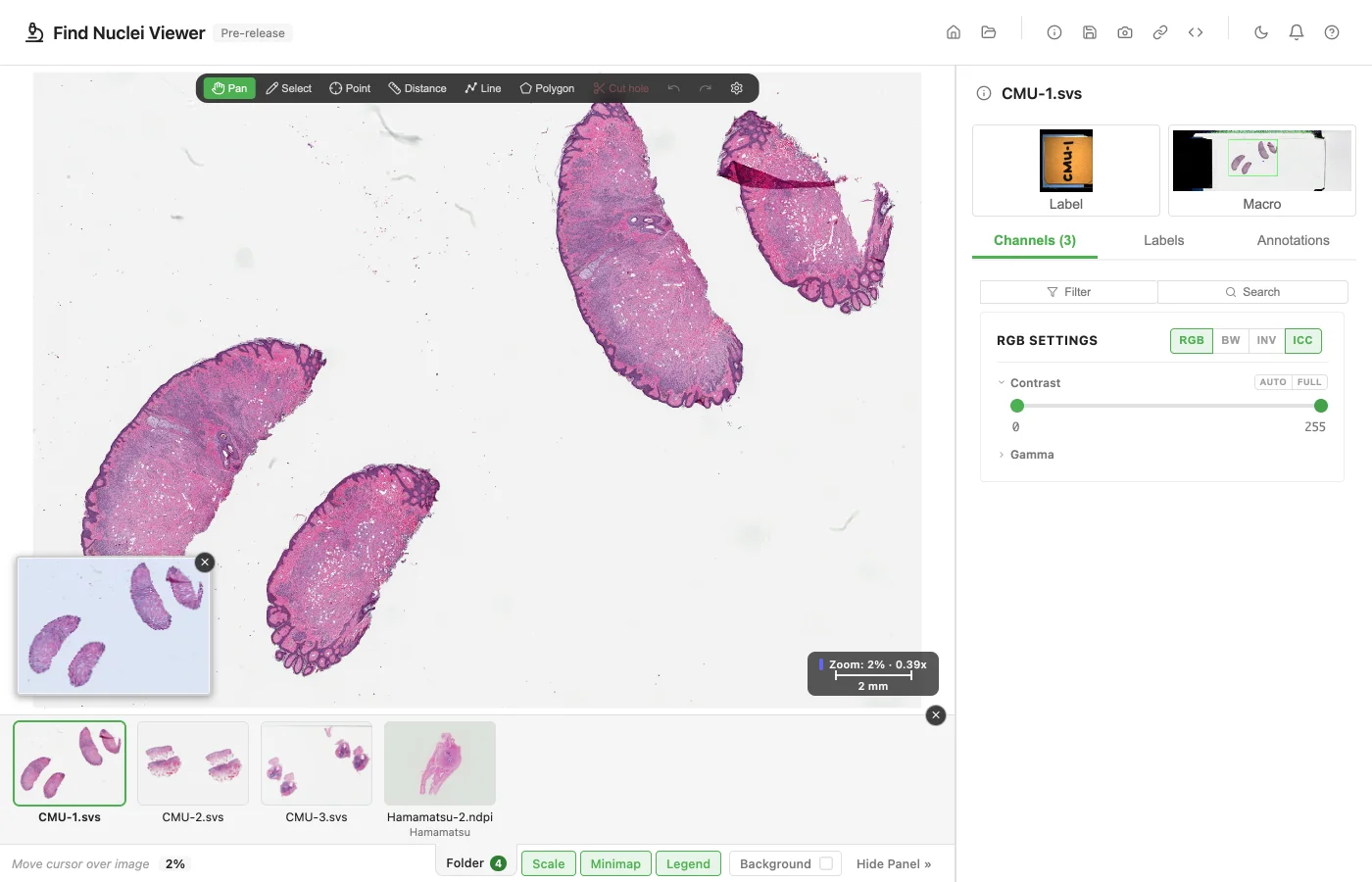
It works for three kinds of collection:
- A folder of slides, OME-Zarr datasets or microscope files, from Aperio, Hamamatsu, 3DHISTECH, Leica, Nikon, Olympus, Zeiss and the rest. One folder can mix them.
- A zip of Zeiss CZI files.
- One file with several images inside: a Leica LIF project, Zeiss CZI scenes, Nikon ND2 positions, Olympus VSI scans, Leica SCN regions, or an OME-Zarr collection.
Nothing is uploaded. The viewer reads the folder or zip on your computer.
Open a Folder or Zip
Drop the folder or zip on the viewer. Or click Open Image, go to the Local Files tab, and click Choose Data Folder for a folder or Choose File for a zip.
| What you open | Chrome, Edge | Firefox, Safari, iPhone, iPad |
|---|---|---|
| A folder of several images | Yes | No |
| A zip of several CZI files | Yes | Yes |
| One file with several images inside, from your disk or an address | Yes | Yes |
Folders need Chrome or Edge
Firefox and Safari cannot read a folder from a web page, and neither can any browser on an iPhone or iPad. Zip the CZI files and open the zip instead. Large files read best from a zip made without compression.
The list and the gallery are for a folder or zip on your disk. A file opened by its address still gets its Series gallery.
The Choose a Dataset List
A folder or zip with two images or more opens on Choose a dataset. It lists every image with a small picture beside its name.
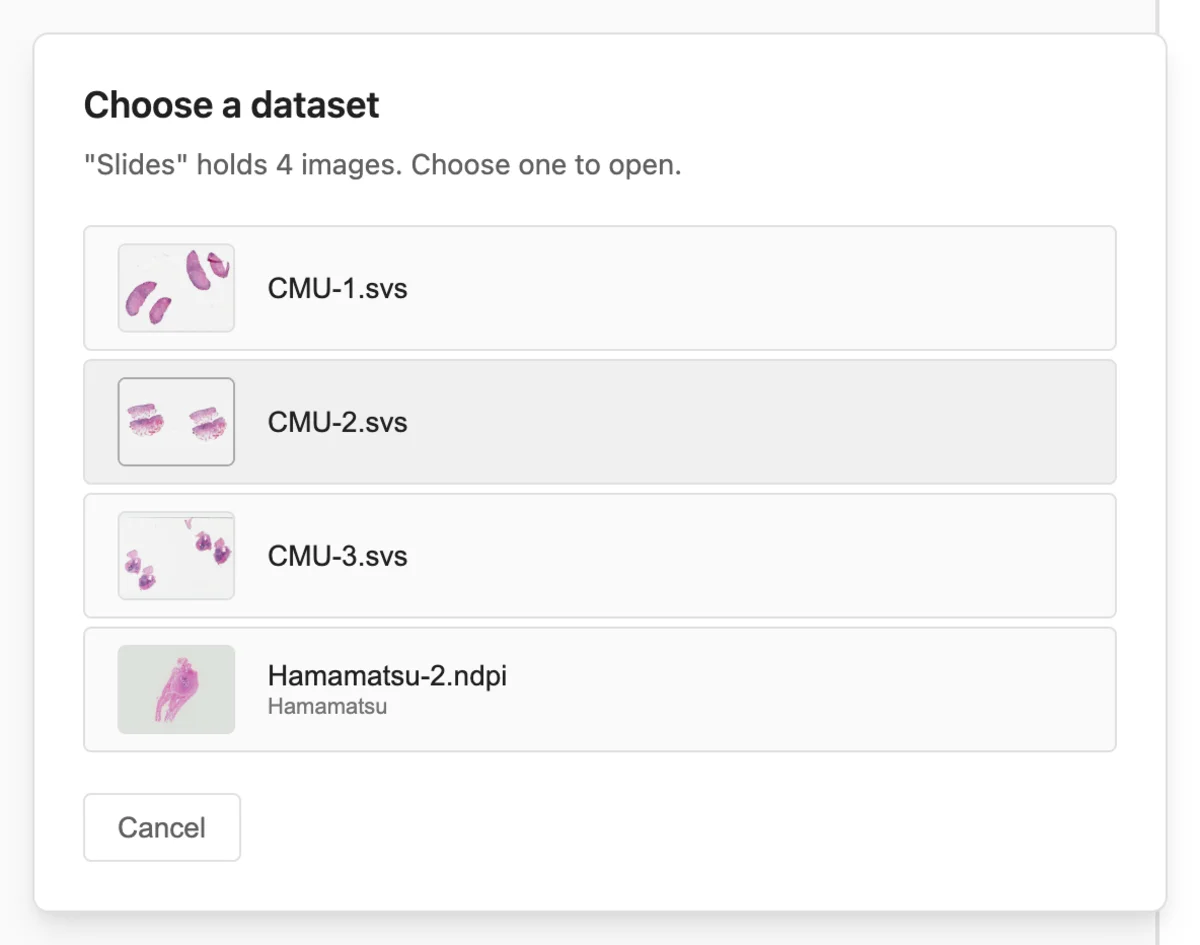
- The picture shows the image as it opens, with every channel in its own colour. Pictures appear as you scroll.
- A file one folder down shows its name first and the sub-folder under it, in grey. Choose the folder of an experiment, and the files of each day are in the list.
- A slide with its own data folder is one row: a 3DHISTECH
.mrxsfile with its folder, an Olympus.vsifile with its_name_folder, a Leica XLEF export, or a folder of DICOM files. Several can sit side by side, and the list finds them up to two folders down, such asmrxs/CMU-1/CMU-1.mrxs. - A
.zipor.ozxfile in the folder is listed by its name. - The names come from the data, not from the folder names. A dataset called
plate-3is found just as well as one calledsample.ome.zarr. - A plate shows its first field, with its name and size.
- A file that cannot be opened stays in the list, greyed out, with the reason.
Click a name to open that image.
The Gallery
After you pick an image, a gallery of pictures sits under it, above the status bar. Click another picture to open that image.

- The open image has a green border.
- The arrow keys move between pictures. Enter opens the one you are on.
- The Folder or Zip tab on the status bar shows and hides the gallery. Its badge counts the images. While the gallery shows, the tab joins it.
- The ✕ on the gallery hides it too, and the image gets the room back.
- Room. The gallery takes its own space, so it covers none of the image, the minimap or the scale bar.
The tab appears only when the folder or zip holds two images or more.
Series Inside One File
A file with several images inside gets the same gallery. Click Series on the status bar to show it, one picture per image.
| Format | What the gallery shows |
|---|---|
| Leica LIF | Every image of the project, by its place in the project |
| Zeiss CZI | Each scene |
| Nikon ND2 | Each XY position |
| Olympus VSI | Each scan, such as one at 20x and one at 40x |
| Leica SCN | Each scanned region |
| OME-Zarr | Each series of a collection, such as one written by bioformats2raw |
It works for a file from your disk and for one from an address. Here is a public OME-Zarr collection from the Image Data Resource, idr0079: three zebrafish lateral line Z-stacks in one dataset.
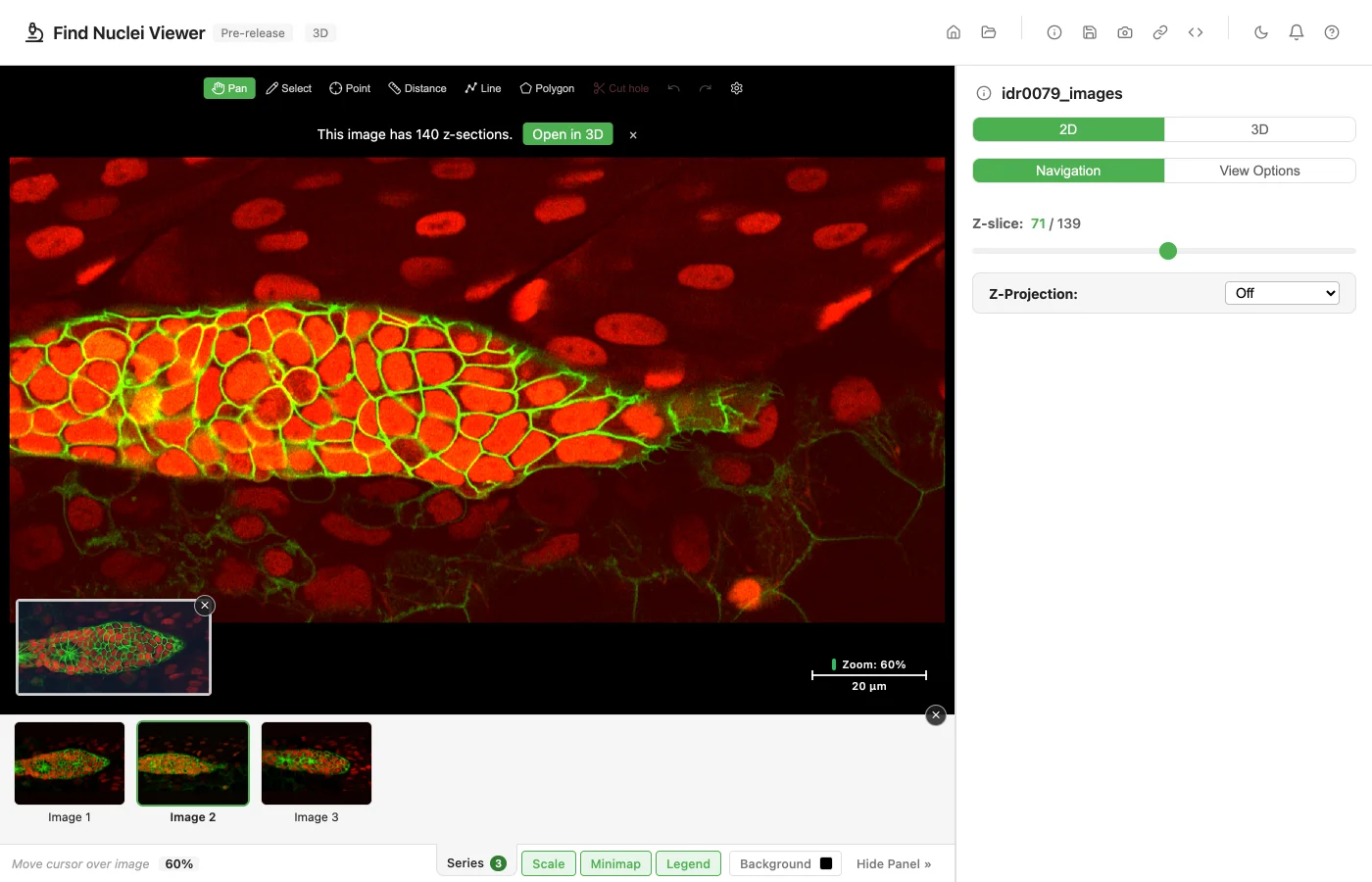
In 3D the gallery sits under the four panels, and their controls stay above it. Pick another series, and it opens in 3D.
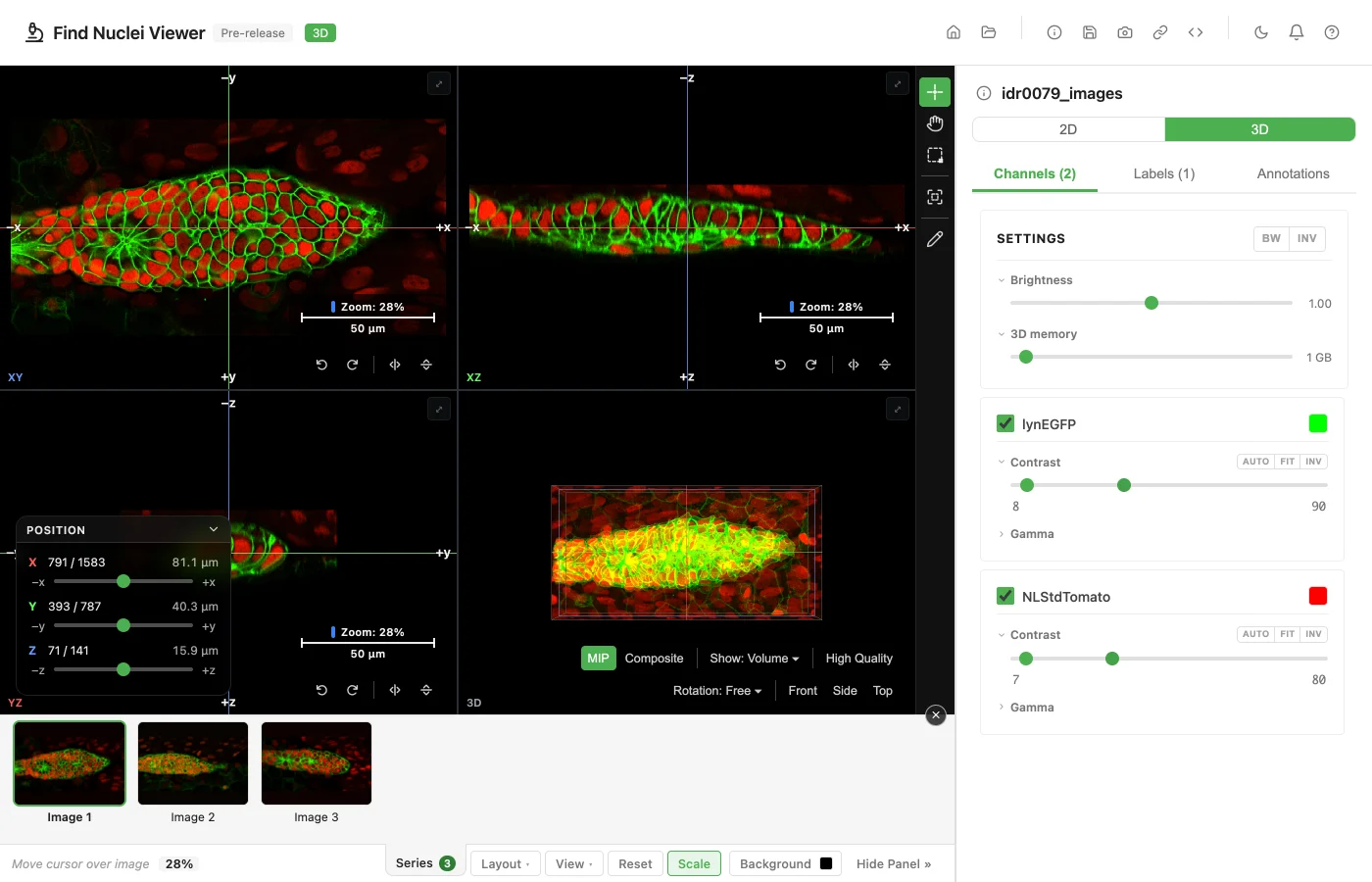
In a folder of such files, the gallery shows one list at a time. Folder shows the files, Series shows the images inside the open file.
On a computer the gallery takes the place of the Series list in the side panel. On a phone the Series list stays. A plate keeps its well map and field list.
Each Image Keeps Its Own View
Move between images as often as you like. Each one keeps:
- its channels: on or off, colour, contrast and gamma;
- its zoom and position;
- its annotations. Shapes you draw on one image stay with it, and the next one starts empty. See Annotations;
- its description, tags and key-values from Info.
A link copied from an image of a folder or zip names that image, as entry=. Opened on the same computer, it reopens the folder or zip at that image. If the image is gone from the folder, the list opens instead, with a note. See Sharing Views.
Recently Opened
A folder or zip is one card in Recently opened, named after the folder or zip.
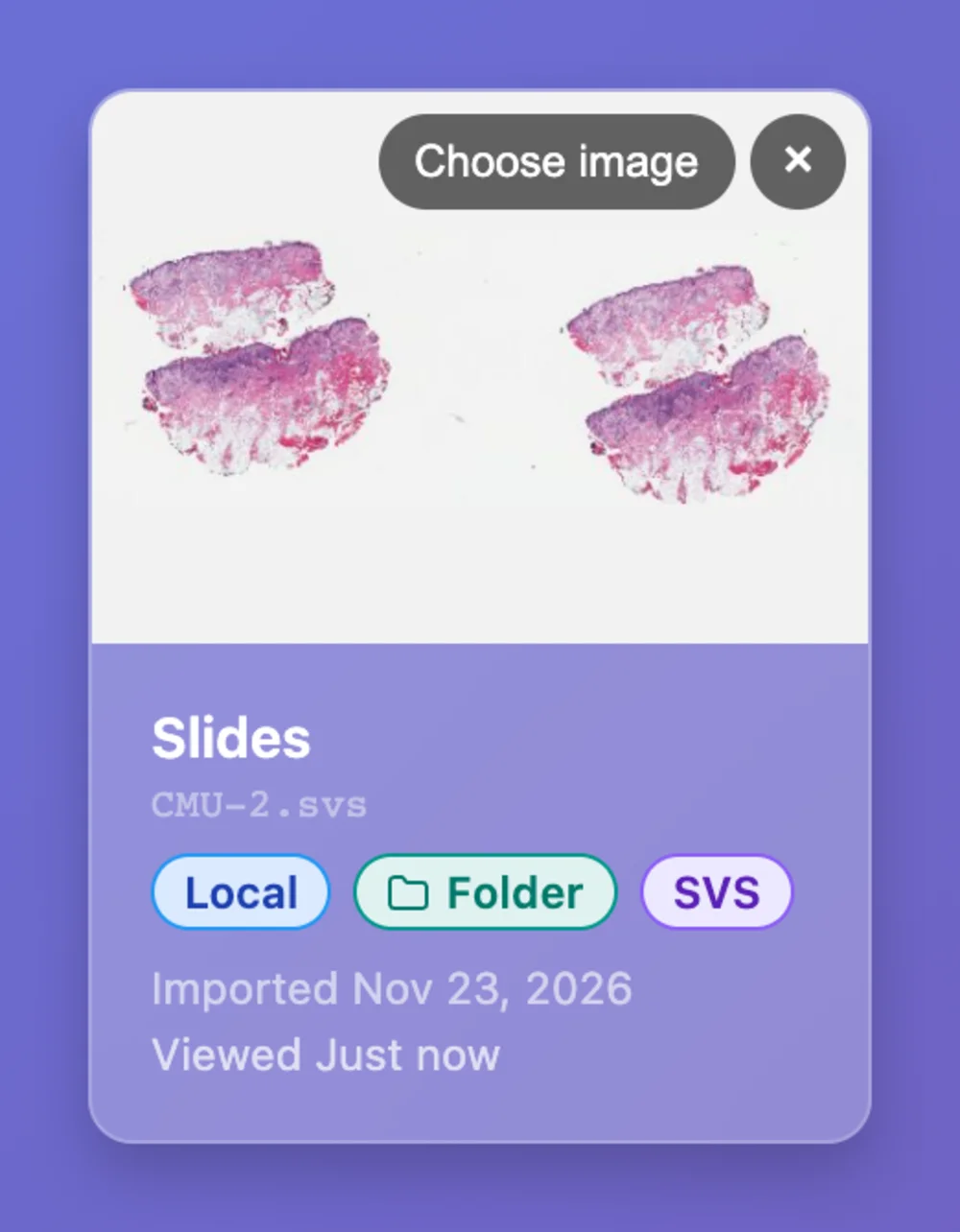
- The teal Folder or Zip badge sets it apart from a single file.
- Under the name is the image you viewed last. Click the card, and you land on that image.
- Choose image opens the folder or zip on its Choose a dataset list instead, with the last image marked. On a computer it shows when you point at the card. On a touch screen it is always there.
An empty viewer shows your last four cards too, with See all for the rest. There, Choose image is a link under the card.
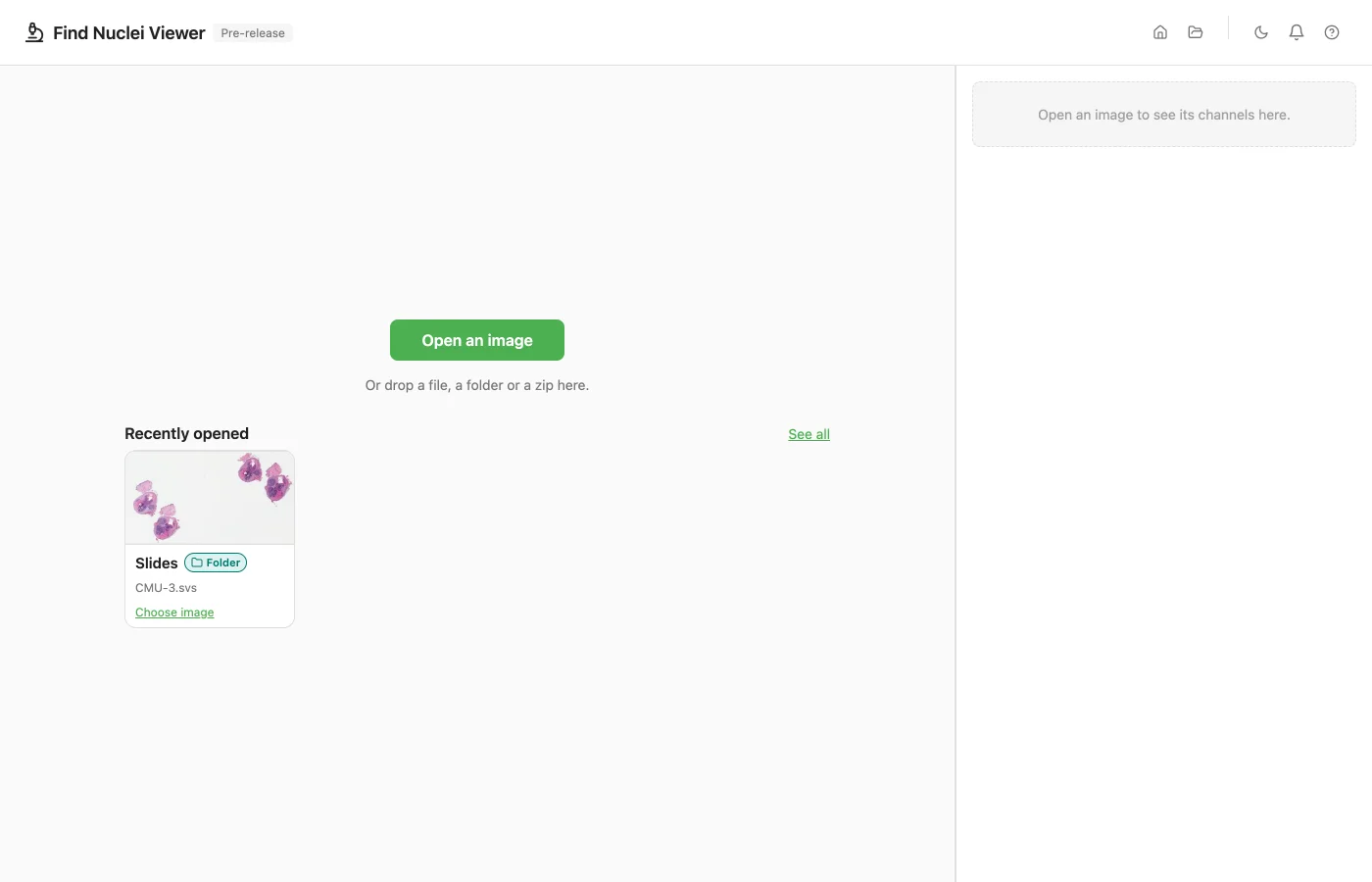
Reopening a folder asks for one permission click in Chrome and Edge. Firefox and Safari ask you to pick the zip again. See Recent Images.
On a Phone
A phone gets the list with its pictures, but no gallery. There is no room for it under the image. A phone cannot pick a folder, so open a zip of CZI files.
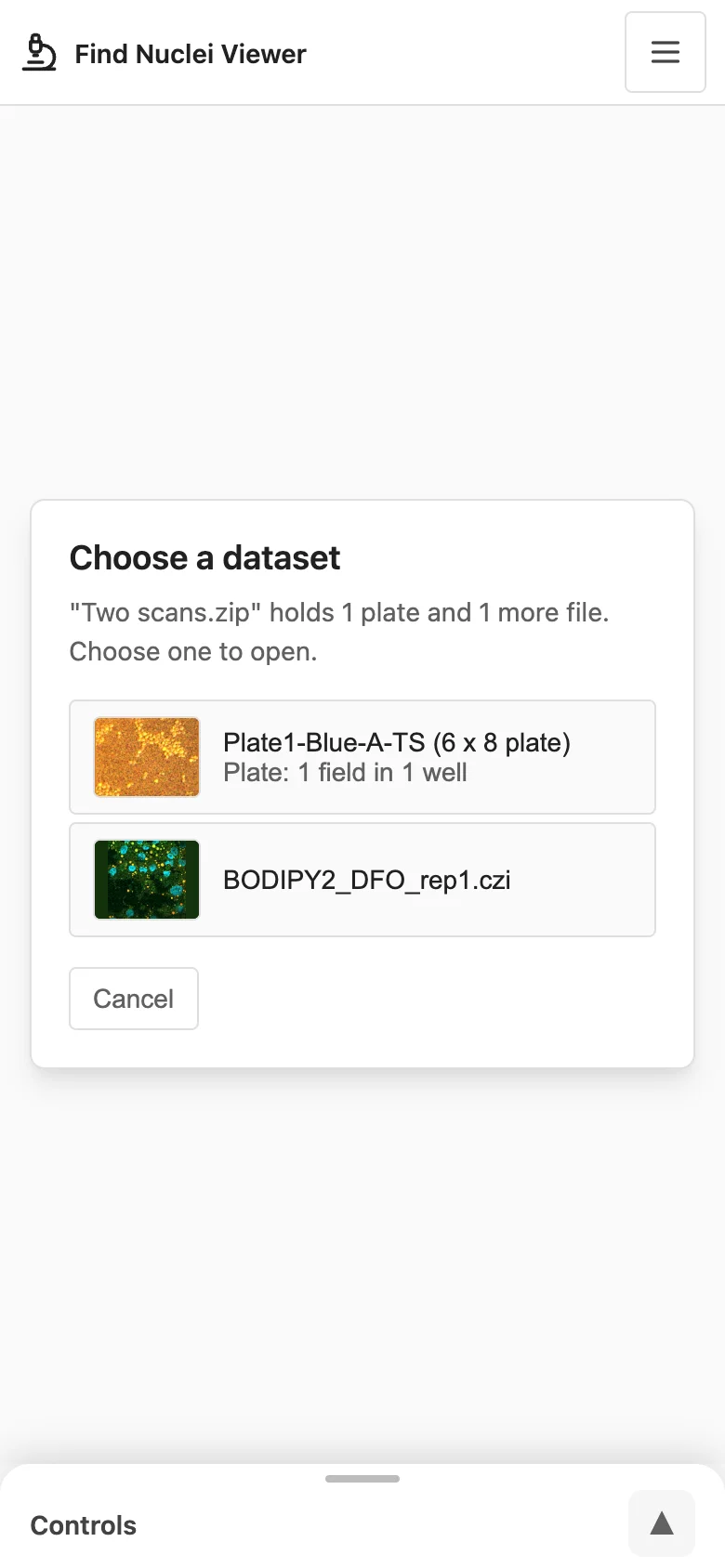
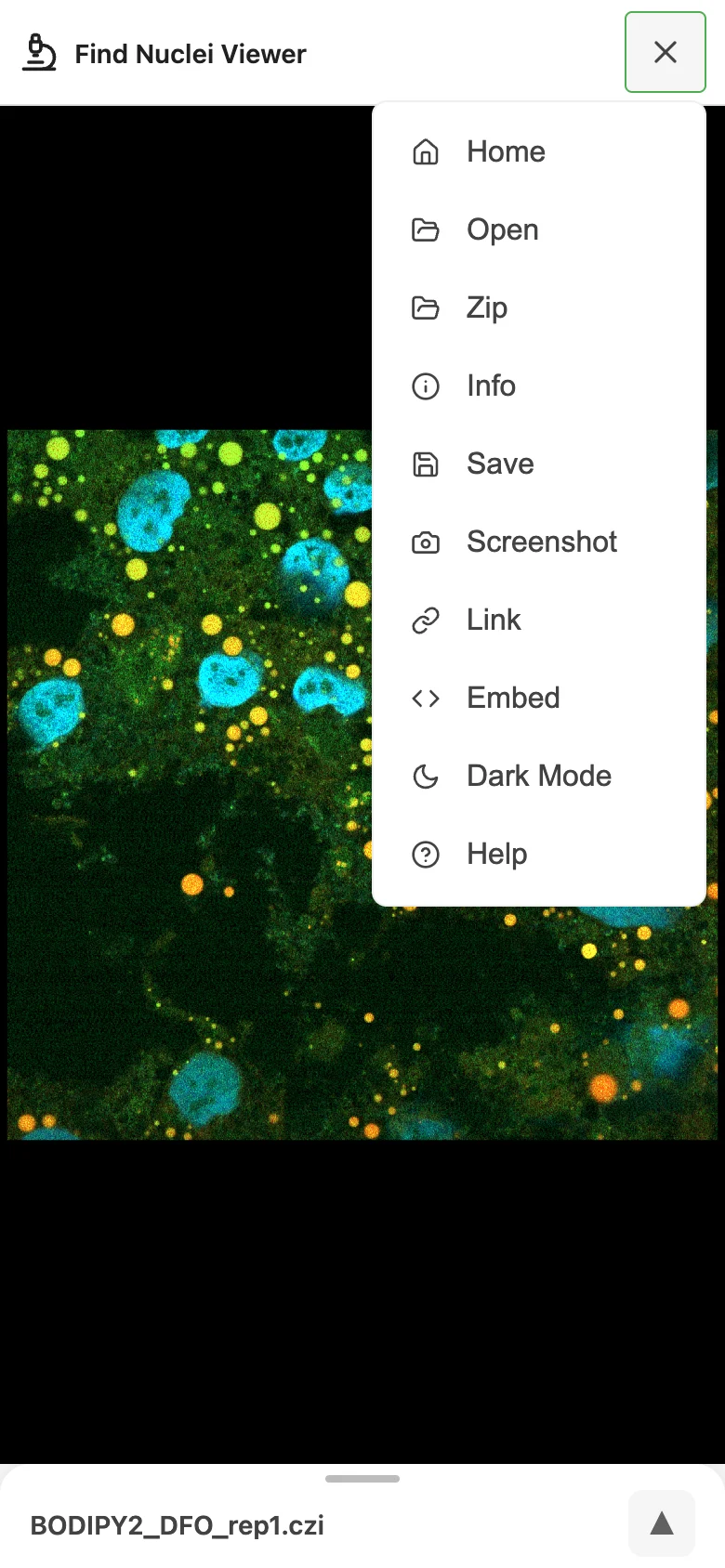
To open another image, open the menu and tap Folder or Zip. The list comes back with the open image marked. For a file with several images inside, use the Series list in the side panel.
Tips
- Hide the gallery for more room. Click ✕ or the tab. A tip says which button brings it back, once per visit.
- Drop next time. After your first file from the picker, a tip says you can drop files on the viewer too. It shows once. Both tips follow Show Tips in the annotation toolbar's settings.
- Mix scanners in one folder. Aperio
.svs, Hamamatsu.ndpi, Leica.scn, 3DHISTECH.mrxsand DICOM slides can sit side by side. Drop a folder sorted by scanner, such as the OpenSlide test data, and every slide is in one list. - Keep the folder of an experiment. Files one folder down are listed, so one folder can hold every day of a time course.
- Start from another image. Use Choose image on the Recent card, rather than opening the folder again.
Image credits
The screenshots use the OpenSlide test slides CMU-1.svs, CMU-2.svs, CMU-3.svs and Hamamatsu-2.ndpi (CC0), the CZI files BODIPY2_DFO_rep1.czi (BioImage Archive S-BIAD4045, CC0) and a scene of the IDR study idr0011 (CC BY 4.0), and the IDR study idr0079 (CC BY 4.0). See Sample Data and Credits.
Related guides
- Local Files: open one file or folder from your disk, and which browser does what
- Zip Without Compression: the zip that large files need
- Sharing Views: links, including the
s=series and theentry=image - Supported Formats: every format, and how it opens